How to Find the YouTube Video You Need: Search Tricks That Actually Work
You know the video exists. You watched it three months ago. It had that perfect explanation, that specific clip, that exact tutorial you need right now. But scrolling through your watch history feels like searching for a specific grain of sand on a beach.
YouTube processes over 500 hours of video uploads every minute. Finding one specific video in that ocean of content requires more than typing a few words into the search bar. Most creators and regular users rely on YouTube's basic search, which works like asking a librarian "Do you have any books?" Instead of precision, you get thousands of vaguely related results sorted by an algorithm that thinks it knows what you want.
This guide shows you the search operators, filters, and commands that turn YouTube's search into a precision instrument. These techniques work for finding your own old uploads, researching competitor content, sourcing footage, or tracking down that one video you half-remember from 2019.
Why YouTube's Basic Search Fails You
According to Digital Information World, YouTube is the second largest search engine on the Internet after Google. Yet most people use it like they are shouting into a crowded room and hoping the right person hears them.
Type "iPhone review" into YouTube's search bar. You get 50 million results. The top videos are probably from major tech channels with massive subscriber bases, uploaded recently, optimized for the algorithm. What you actually wanted was a detailed camera comparison from a smaller creator you trust, uploaded sometime last year, at least 15 minutes long so it goes deep.
Basic search gives you what YouTube thinks most people want. Advanced search gives you what you actually want.
The difference comes down to specificity. Every video on YouTube has metadata: title, description, upload date, duration, resolution, license type, channel name. Basic search looks at some of this. Advanced search lets you target exactly which metadata matters to you.
Search Operators That Filter by Video Characteristics
YouTube's search operators work like commands. Add them to your search query, and YouTube filters results based on specific criteria.
Duration Filters
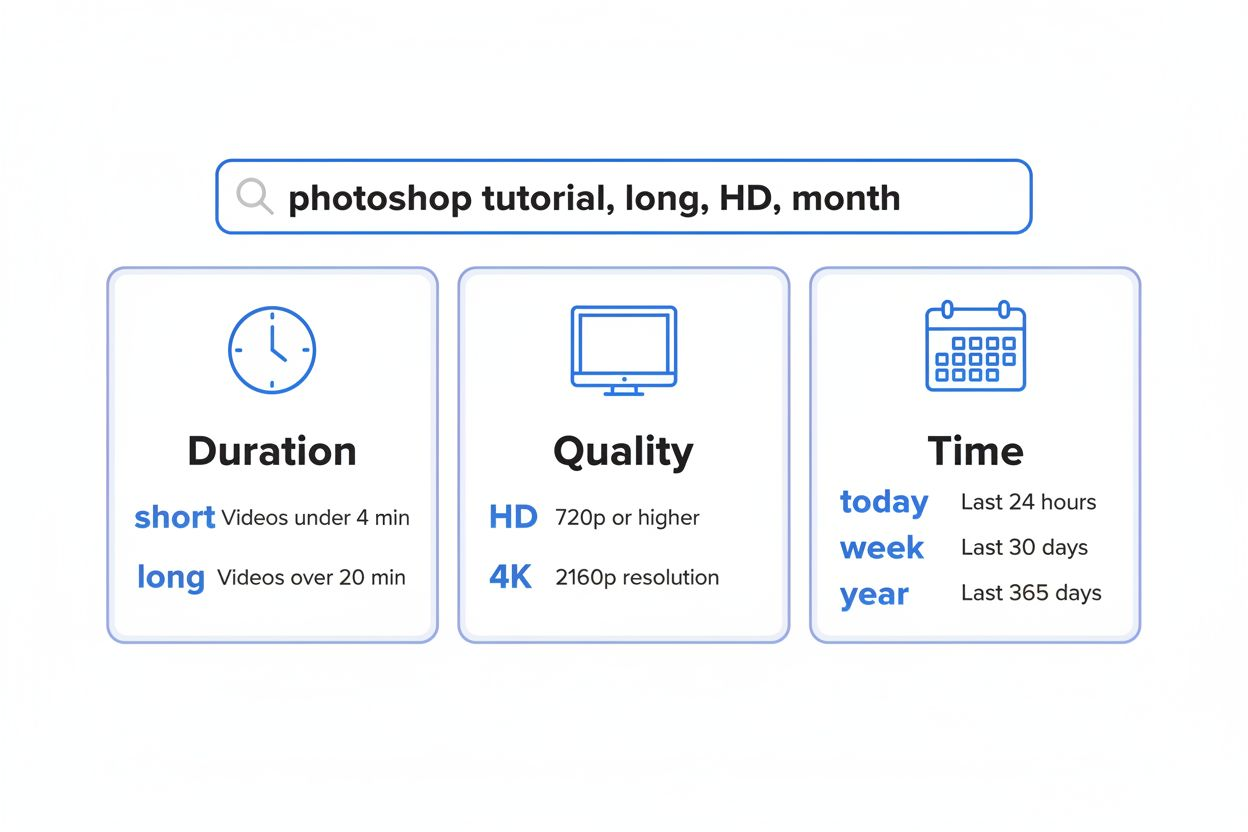
According to Labnol, adding "long" to a search query returns only videos at least 20 minutes in length, while adding "short" limits results to videos 4 minutes or less.
Try this: Search for "photoshop tutorial, long" versus just "photoshop tutorial." The first gives you comprehensive deep-dives. The second includes quick tips and 90-second clips.
This matters for creators researching competition. If you are planning a 25-minute tutorial, you want to see what other long-form content exists on your topic, not compare yourself to 3-minute quick tips.
Duration operators:
- short: 4 minutes or less
- long: 20 minutes or more
- (No operator for medium-length videos, you filter those manually)
Quality Filters
Add "HD" or "4K" to your search to filter by resolution. This sounds obvious, but most people forget it exists.
According to MakeUseOf, typing "iPhone, week, short, HD" shows videos uploaded this week under 4 minutes in HD quality.
For creators sourcing B-roll or reference footage, quality filtering saves hours. You need 4K footage of city streets at night? Search "city streets night, 4K" instead of wading through 480p uploads from 2009.
Time-Based Filters
YouTube lets you filter by upload date using these operators:
- today
- week (this week)
- month (this month)
- year (this year)
According to Perkins School for the Blind, filtering by "this year" eliminates older YouTube videos from results.
This matters more than you think. Tech tutorials from 2015 show outdated interfaces. News commentary from last year lacks current context. Product reviews from three years ago cover discontinued models.
Search "Blender tutorial, year" to see only recent content reflecting the current version of the software. Search "iPhone 15 review, month" right after launch to catch early impressions.
Creative Commons Filter
According to MakeUseOf, the Creative Commons filter finds content licensed for reuse.
Add ",creativecommons" to your search. YouTube shows only videos the creator has licensed for others to use, remix, and republish (with attribution).
For creators building compilation videos, reaction content, or educational material, this filter is essential. It shows you exactly which content you can legally use without risking copyright strikes.
Search "nature footage, 4K, creativecommons" to find high-quality B-roll you can drop into your next video project.
360-Degree Video Filter
According to Perkins School for the Blind, 360-degree videos can be found by appending ",360" to a search query.
This niche filter matters if you are creating VR content, researching immersive video techniques, or just want to experience a location in 360 degrees.
Search "Tokyo streets, 360" to find immersive walking tours. Search "concert, 360, year" to find recent 360-degree concert footage.
Title and Text Search Operators
Sometimes you remember part of a video's title but not enough to find it through basic search. Title operators solve this.
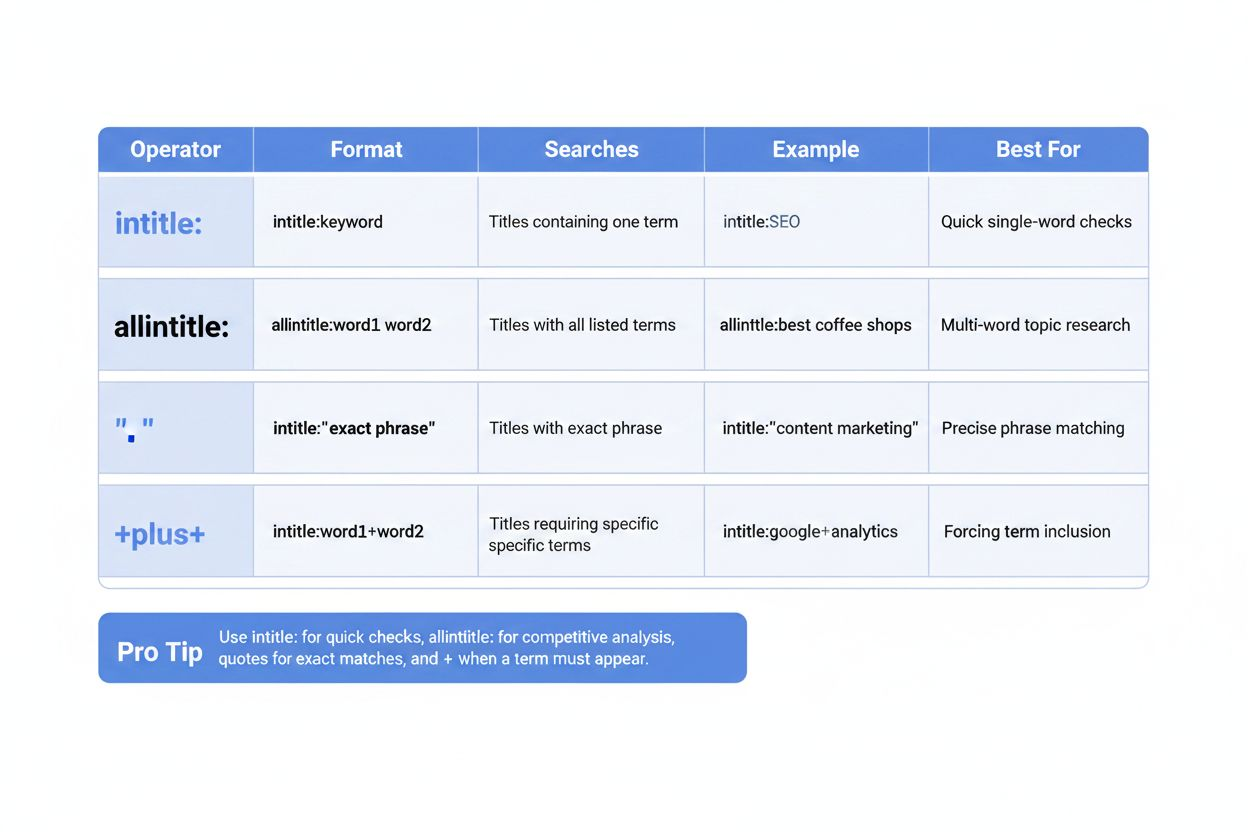
The intitle: Operator
According to Perkins School for the Blind, use "intitle:" colon and keyword to search for specific words in video titles.
Format: intitle:keyword
This searches only video titles, ignoring descriptions, tags, and comments. If you remember a video had "masterclass" in the title, search "intitle:masterclass photography" instead of just "masterclass photography."
The difference: basic search returns any video about photography that mentions masterclass anywhere in its metadata. The intitle: search returns only videos with "masterclass" actually in the title.
The allintitle: Operator
According to Labnol, the "allintitle:" operator performs exact title matches on YouTube.
Format: allintitle:first word second word third word
This requires all specified words to appear in the title, in any order. Search "allintitle:Premiere Pro color grading" to find videos with all four words in the title.
This operator is powerful for finding specific tutorials or reviews. You know the video title included three specific terms. allintitle: finds it.
Exact Match with Quotation Marks
According to Perkins School for the Blind, exact match searches use double quotes before and after keywords.
Format: "exact phrase here"
This forces YouTube to match the exact phrase in that exact order. Search "how to change a tire" (with quotes) versus how to change a tire (without quotes).
With quotes: YouTube finds videos with that exact phrase. Without quotes: YouTube finds videos about changing tires, tire changes, tire replacement, and related concepts in any order.
Use this when you remember an exact phrase from the title or when searching for specific technical terms that must appear together.
The Plus Operator for Required Terms
According to Perkins School for the Blind, use "+" between keywords to include two or more words in a search.
Format: keyword+keyword+keyword
This ensures all terms appear somewhere in the video's metadata. Search "iPhone+camera+comparison" to require all three terms.
The difference between this and allintitle: The plus operator searches all metadata (title, description, tags). The allintitle: operator searches only titles.
Combining Multiple Operators for Precision Search
The real power comes from stacking operators. According to Labnol, you can combine multiple search operators with commas, such as "ted talks, hd, this month, long."
This single search query filters for:
- Videos mentioning "ted talks"
- In HD quality
- Uploaded this month
- At least 20 minutes long
Each comma adds another filter. The more specific your needs, the more operators you combine.
Practical Combination Examples
Finding recent comprehensive tutorials: "Davinci Resolve color grading, long, HD, month"
This returns only detailed tutorials (long), in good quality (HD), with current information (month).
Sourcing reusable footage: "ocean waves, 4K, creativecommons, long"
This finds high-quality, legally reusable footage that is long enough to provide multiple usable clips.
Researching competitor content: "allintitle:beginner guitar lesson, week, short"
This shows recent short-form beginner content from other creators, helping you identify gaps in the market.
Finding specific old content: "intitle:WWDC 2019, long"
This narrows results to lengthy videos specifically about WWDC 2019, filtering out clips and highlights.
Operator Limitations You Need to Know
According to MakeUseOf, filtering by upload date and by channels cannot be combined simultaneously.
This is a real limitation. You cannot search "channel:mkbhd, month" to see only videos from MKBHD uploaded this month. YouTube's search syntax does not support this combination.
Workaround: Go to the channel page first, then use the channel's own search bar with time filters.
Another limitation: Operators work best in English. Non-English searches may produce inconsistent results depending on how creators tagged their content.
Using YouTube's Built-In Filter Interface
Not everything requires operators. YouTube's filter interface (the button next to the search bar) provides point-and-click access to many of the same features.
After searching, click "Filters" to access:
- Upload date (last hour, today, this week, this month, this year)
- Type (video, channel, playlist, movie)
- Duration (under 4 minutes, 4-20 minutes, over 20 minutes)
- Features (live, 4K, HD, subtitles, creative commons, 360, VR180, 3D, HDR, location, purchased)
- Sort by (relevance, upload date, view count, rating)
According to MakeUseOf, YouTube's default sort is by Relevance, matching search intent.
Changing the sort order dramatically affects results. Sort by upload date to find the newest content. Sort by view count to find the most popular. Sort by rating to find the highest-quality (though this metric is less reliable since YouTube removed public dislike counts).
The filter interface works well for single-criterion filtering. For multiple criteria, operators are faster. Type "tutorial, long, HD, month" instead of clicking through four filter menus.
Advanced Techniques: Searching YouTube Through Google
According to MakeUseOf, running a site:youtube.com search on Google can surface YouTube content not found natively.
Google's search algorithm differs from YouTube's. Sometimes Google indexes YouTube videos that YouTube's own search deprioritizes or buries.
Format: site:youtube.com your search terms
This tells Google to search only YouTube but using Google's ranking algorithm instead of YouTube's.
Add Google's own operators for even more precision:
- site:youtube.com "exact phrase" - Exact match on YouTube
- site:youtube.com keyword -unwanted - Exclude terms
- site:youtube.com keyword filetype:mp4 - Find direct video files (rarely works, but worth trying)
This technique is especially useful for finding older content. YouTube's algorithm favors recent uploads. Google's algorithm weighs other factors, sometimes surfacing older videos that YouTube's search ignores.
Try both. Search YouTube directly first. If you do not find what you need, run the same query through Google with site:youtube.com.
Finding Videos by Channel When You Forgot the Channel Name
You remember the video but not who made it. You remember it was about sourdough bread, probably 15-20 minutes long, uploaded sometime in 2022.
Start broad, then narrow:
- Search "sourdough bread, 2022, long"
- Scan thumbnails and titles for anything familiar
- If you remember any exact phrase from the title, add it in quotes
- If you remember it was a woman's voice, add "woman" or "female" to the search
- If you remember any specific technique mentioned, add that term
This process works because human memory is associative. You might not remember the channel name, but you remember contextual details. Each detail becomes a search operator.
Another approach: Check your watch history. Go to youtube.com/history and use your browser's find function (Ctrl+F or Cmd+F) to search the page for keywords. Your browser searches only loaded content, so scroll down to load more history, then search again.
Searching Your Own Content as a Creator
Creators often forget what they have uploaded. You made a video about a topic two years ago. Someone asks about it. You cannot remember the title.
Go to YouTube Studio, then Content. Use the search bar there to search your own uploads. This searches titles, descriptions, and tags across only your content.
For deeper searches, use operators in the main YouTube search combined with your channel name: "channel:yourchannelname keyword"
Or use the site:youtube.com Google search method: site:youtube.com/c/yourchannelname keyword
This helps you find your own content to link in video descriptions, reference in new videos, or recommend to viewers asking questions.
Troubleshooting When Search Still Fails
You have tried operators, filters, and Google searches. The video still does not appear. Why?
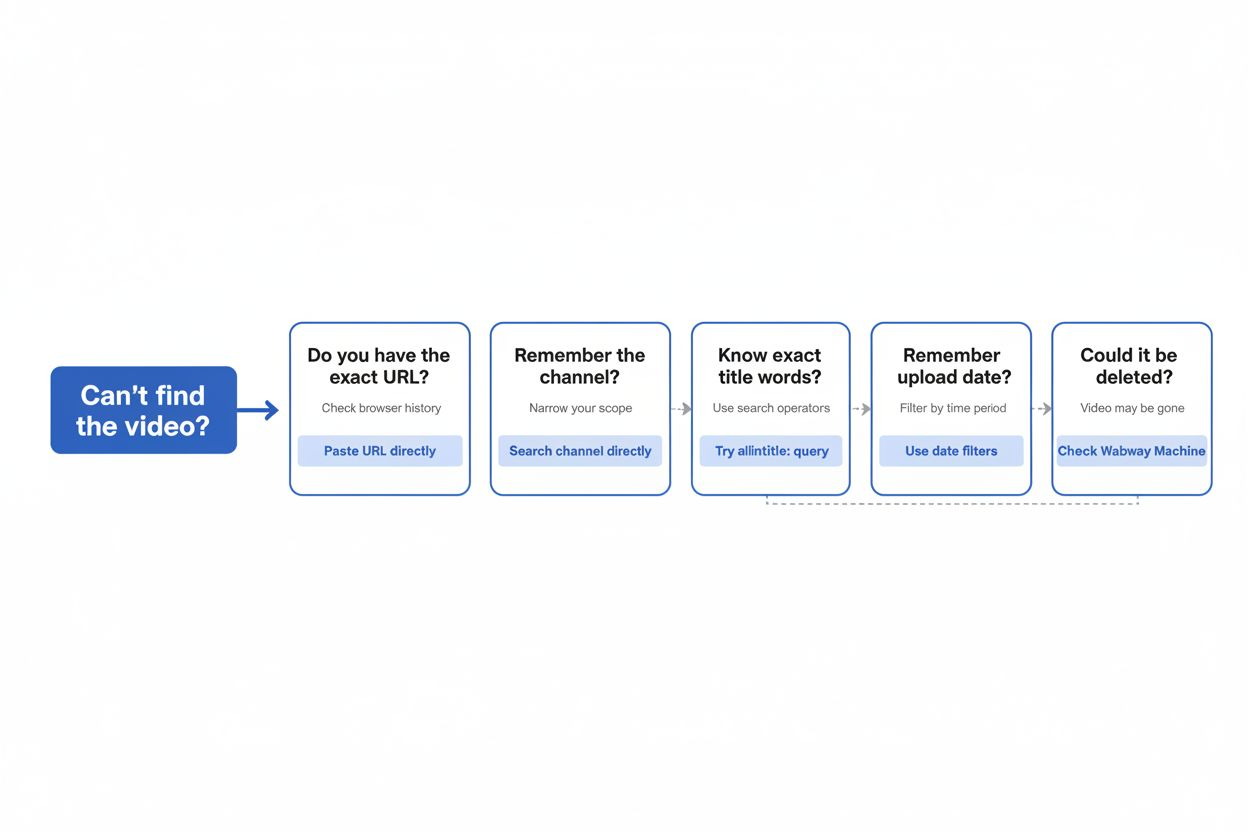
The video was deleted. Creators remove content. Channels get terminated. Videos get copyright-struck. If the video is gone, no search will find it. Check the Wayback Machine (web.archive.org) to see if an archived version exists.
The video was unlisted. Unlisted videos do not appear in search results. You need the direct link. If you watched it while logged in, check your watch history.
The video is private. Private videos are invisible to everyone except the uploader. No search technique will find them.
Your memory is wrong. You might be combining details from multiple videos. Try searching for each detail separately to see if you are conflating two different videos.
The video is region-locked. Some content is only available in certain countries. If you are searching from outside that region, the video will not appear. Use a VPN to search from different locations.
The video was re-uploaded by someone else. The original got taken down, but someone else uploaded a copy. Search for the topic broadly, not the exact title you remember.
Building Your Personal Search Strategy
Effective YouTube search is not about memorizing every operator. It is about developing a mental model of how to narrow results.
Start with the most distinctive detail you remember. If you remember the exact title phrase, use quotes. If you remember it was recent and long, use time and duration operators. If you remember the channel, search the channel directly.
Each search either finds the video or teaches you something. If your first search returns 10,000 results, you learned your query was too broad. Add another operator. If your search returns zero results, you learned your query was too specific or one detail was wrong. Remove an operator or try synonyms.
Think of search operators as filters you stack until only the right videos remain. You are not trying to guess the perfect search on the first attempt. You are iteratively narrowing a large set to a small set.
Practice this on videos you can easily find. Search for a popular video you know exists, but use only operators (no channel name, no exact title). This builds your intuition for which operators eliminate which types of content.
What YouTube Search Cannot Do (And Alternatives)
YouTube's search has hard limits. It cannot search within video transcripts effectively (though Google sometimes can). It cannot search comments. It cannot search by specific upload time (only date ranges). It cannot search by specific view count ranges.
For transcript search, use Google with site:youtube.com and your keywords. Google indexes auto-generated transcripts and sometimes surfaces videos based on spoken content.
For comment search, you need third-party tools. YouTube's API allows comment searching, but YouTube's interface does not expose this. Tools like "YouTube Comment Finder" extensions for Chrome or Firefox fill this gap.
For view count ranges, use filters to sort by view count, then manually scan results. YouTube does not offer "videos with 10,000 to 50,000 views" as a filter.
For upload time (hour of day), no solution exists. YouTube does not expose this data in searchable form.
The Future of YouTube Search
YouTube's search algorithm evolves constantly. Features that work today might change tomorrow. The platform experiments with AI-generated summaries, semantic search, and multimodal search (searching by humming a song, describing a scene, or uploading a reference image).
These changes will make some manual operators obsolete. If YouTube's AI can understand "find me that video about sourdough bread from 2022 by a woman with a calm voice," operators become unnecessary.
Until then, operators and filters remain the most reliable way to find specific content in YouTube's massive library. They work because they are explicit. You tell YouTube exactly what you want instead of hoping the algorithm guesses correctly.
Bookmark this guide. YouTube search is a skill that compounds. The more you use these techniques, the faster you find what you need, and the more time you save for actually creating content instead of searching for it.