Free YouTube Tools: How to Build a Complete Creator Toolkit Without Spending a Dollar

You don't need a budget to start a YouTube channel. The barrier to entry has never been lower. Professional editing software that shaped Marvel films is free. Music libraries offer thousands of copyright-cleared tracks at no cost. Analytics tools show exactly what your audience wants. The catch? You need to know where to look.
This guide walks through building a complete YouTube toolkit using only free resources. We'll cover video editing, audio cleanup, thumbnail creation, SEO research, and analytics. By the end, you'll have everything needed to produce, optimize, and grow a channel without opening your wallet.
Video Editing: Professional Software at Zero Cost
The editing suite makes or breaks production quality. Fortunately, the same software used in Hollywood blockbusters is available for free.
DaVinci Resolve: The Industry Standard
According to Uppbeat, DaVinci Resolve is completely free and has been used in post-production on Marvel films, Star Wars, and James Bond. The free version includes professional color grading, visual effects, and audio post-production tools that paid alternatives charge hundreds for.
The interface intimidates beginners, but the capability is unmatched. You get unlimited timeline tracks, 4K export support, and advanced color wheels that let you match footage shot on different cameras. The learning curve is steep, but YouTube tutorials cover every feature.
Download it from Blackmagic Design's website. The installer is large (several gigabytes), so plan accordingly. Once installed, you have access to the same toolset used by professional colorists and editors worldwide.
CapCut: Speed and Simplicity
For creators who need fast turnarounds, CapCut offers a different approach. According to Lern CLICKS, CapCut syncs cuts to the beat of music automatically—ideal for vloggers or short-form creators.
The auto-caption feature alone saves hours. Upload a video, and CapCut generates subtitles with reasonable accuracy. You can customize fonts, colors, and animations to match your brand. The mobile app works seamlessly with the desktop version, so you can start edits on your phone and finish them on a computer.
CapCut also includes trending effects and transitions that appear in viral content. If you're creating YouTube Shorts or fast-paced vlogs, these presets help maintain viewer attention without manual keyframing.
When to Use Which Editor
Use DaVinci Resolve for:
- Long-form content requiring color correction
- Multi-camera edits
- Projects where audio mixing matters
- Content that needs professional polish
Use CapCut for:
- Quick turnaround videos
- Content with heavy music integration
- Shorts and vertical video
- Projects where speed matters more than advanced features
Audio: Cleaning Up Your Sound
Bad audio kills viewer retention faster than shaky footage. Free tools can fix most common problems.
Audacity: The Audio Workhorse
According to Lern CLICKS, Audacity is a free, open-source audio editor that removes background noise and balances levels. It's been around for decades, which means every problem you encounter has a documented solution online.
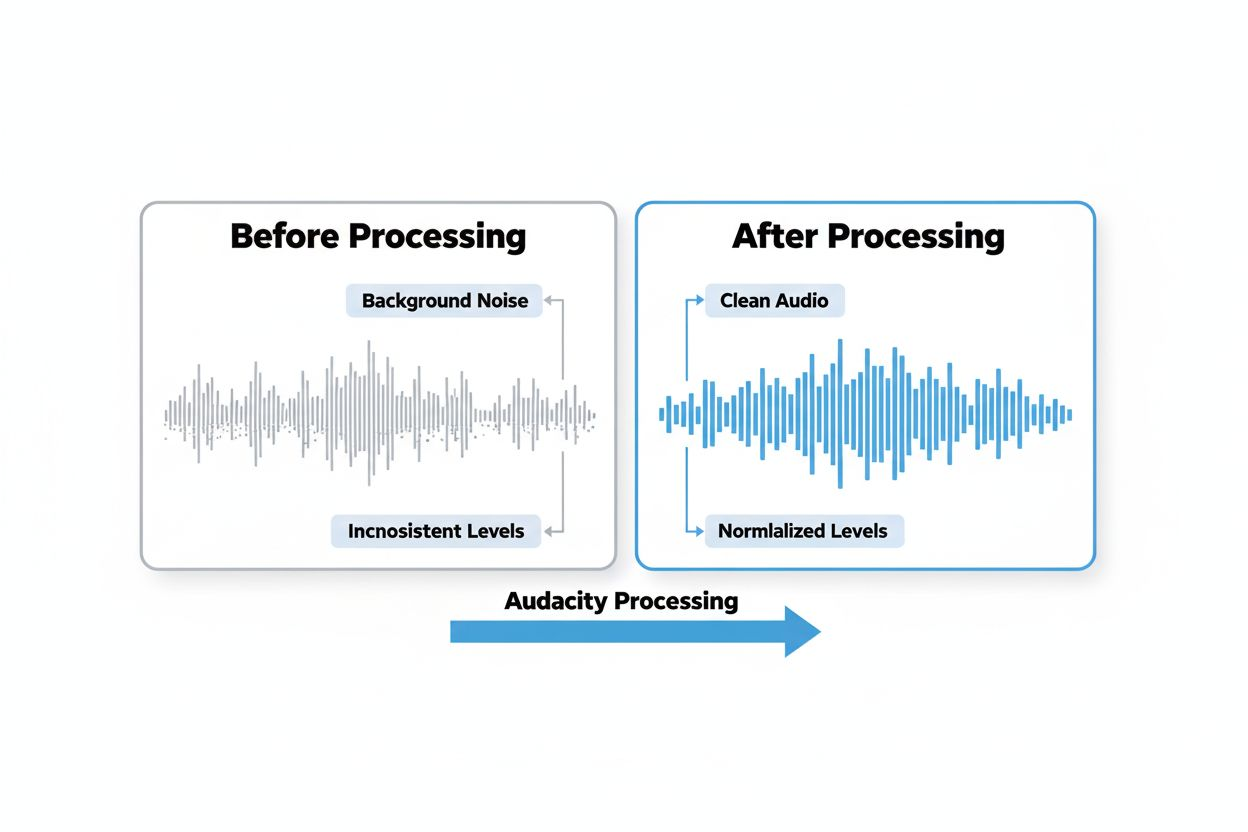
The noise reduction process is straightforward. Select a section of "silent" audio that contains only background noise. Use the Noise Reduction effect to create a noise profile. Apply that profile to your entire track, and Audacity strips out the hum of air conditioning, computer fans, or street noise.
The compressor effect balances volume levels, so whispers and normal speech sit at similar volumes. The normalize effect ensures your final audio hits appropriate loudness standards without clipping.
AI Voiceovers for Specific Use Cases
According to Gyre, ElevenLabs free version supports 14 languages and 10,000 characters per month for AI voiceovers. This is not a replacement for your voice in most content, but it solves specific problems.
Use AI voiceovers for:
- Translating content into other languages
- Creating narration for B-roll montages
- Generating placeholder audio while scripting
- Channels where anonymity matters
The 10,000 character limit equals roughly 1,500 words, enough for several short videos or one longer piece each month. The voices sound natural enough that viewers accept them in educational or documentary-style content.
Thumbnail Creation: Standing Out in Search Results
Thumbnails determine click-through rates more than titles. Free design tools give you professional options.
Canva: Templates and Simplicity
Canva's free tier includes thousands of YouTube thumbnail templates. The drag-and-drop interface requires no design experience. You can add text, adjust colors, and insert images in minutes.
The template library follows current YouTube trends. Bold text, high-contrast colors, and expressive faces dominate because they work. Start with a template, customize it to match your brand colors, and you have a consistent thumbnail style.
Canva also stores your brand kit (colors, fonts, logos) so every thumbnail maintains visual consistency. Viewers should recognize your content before reading the title.
GIMP: Advanced Control
For creators who need more control, GIMP offers Photoshop-level features at no cost. The learning curve is steeper, but you can create custom graphics, remove backgrounds, and build complex compositions.
GIMP works well for channels with specific visual identities. If your thumbnails require custom illustrations, photo manipulation, or precise color matching, GIMP delivers.
Testing Before Publishing
According to Gyre, ThumbnailCheck lets creators preview how thumbnails look before publishing to stand out in search and recommendations. The tool shows your thumbnail at actual size alongside other videos in search results and suggested feeds.
What looks clear at full size often becomes illegible when shrunk to mobile dimensions. ThumbnailCheck reveals whether your text is readable, your subject is recognizable, and your thumbnail stands out from competitors. Test multiple versions before settling on a final design.
SEO Research: Finding What People Actually Search
YouTube is the second-largest search engine. Optimization determines whether your video reaches ten viewers or ten thousand.
YouTube's Built-In Search Suggestions
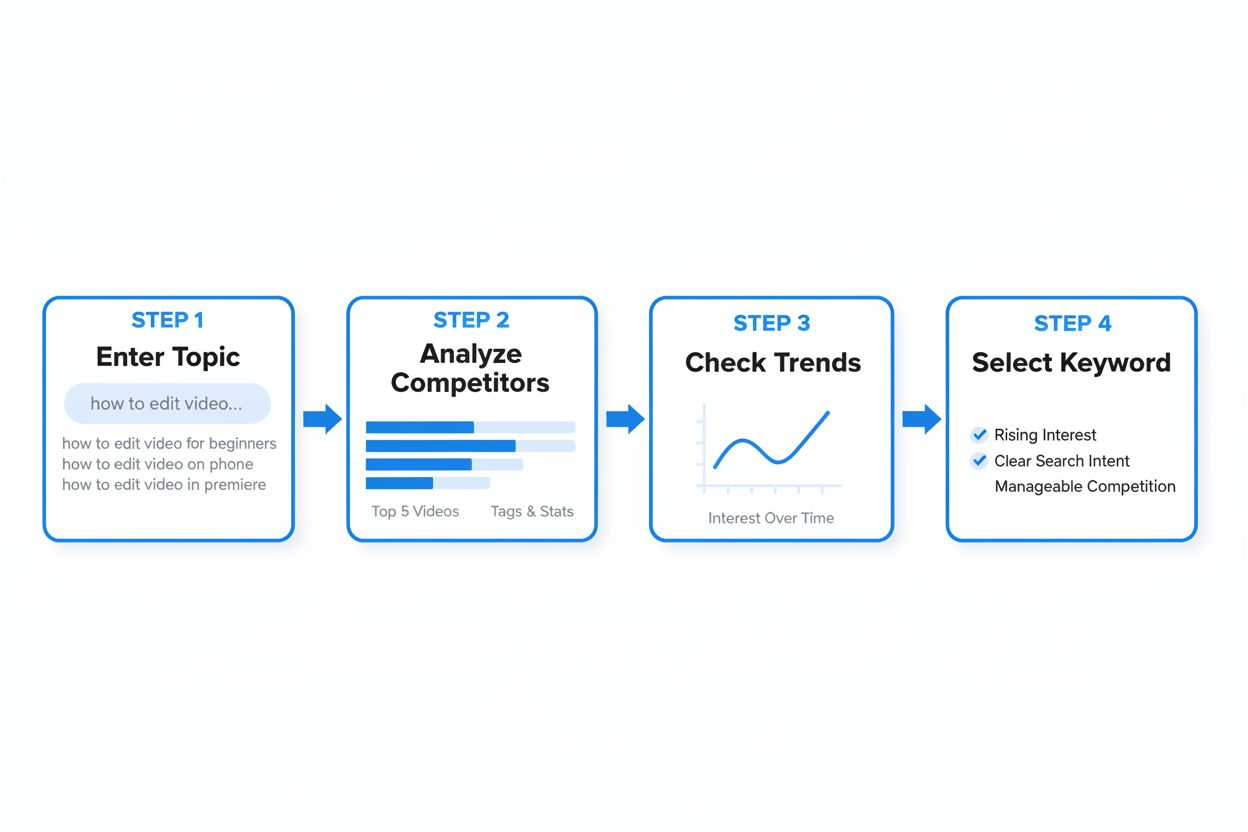
Start with YouTube's autocomplete. Type your topic into the search bar and watch what appears. These suggestions represent real searches people perform. They're free, current, and directly relevant to your niche.
Try different variations:
- "how to [your topic]"
- "[your topic] for beginners"
- "best [your topic]"
- "[your topic] tutorial"
Each variation reveals different search intents. A "how to" search indicates someone wants step-by-step instructions. A "best" search suggests comparison content. Match your video format to search intent.
TubeBuddy: Hidden Competitive Intelligence
According to Gyre, TubeBuddy's free Videolytics feature shows hidden tags, performance data, and engagement stats. Install the browser extension, and you can see exactly what tags successful videos in your niche use.
This competitive intelligence is invaluable. Find the top five videos for your target keyword. Check their tags. Note patterns in titles, descriptions, and thumbnails. You're not copying—you're learning what works in your specific niche.
The free version limits some features, but tag analysis and basic SEO scoring remain available. That's enough to optimize your first hundred videos.
Google Trends for YouTube
Google Trends includes a YouTube-specific filter. Search for your topic, switch to YouTube search, and you'll see whether interest is growing, stable, or declining. You can also compare multiple topics to see which has more search volume.
This prevents you from creating content about dying trends. If search interest peaked two years ago and has declined since, that topic may not be worth your time. Focus on stable or growing search terms.
Copyright-Free Assets: Music and B-Roll
Using copyrighted material triggers Content ID claims that redirect your ad revenue. Free libraries solve this problem.
YouTube Audio Library
YouTube's own audio library offers thousands of tracks cleared for use on the platform. Filter by genre, mood, instrument, and duration. Download directly, and you're guaranteed no copyright issues.
The quality varies. Some tracks sound generic, but others are production-ready. Preview extensively before downloading. The library updates regularly, so check back when starting new projects.
Uppbeat and Pixabay
According to Uppbeat, creators can get everything needed to produce professional videos for free, from editing software to copyright-free music and B-roll footage. Uppbeat's free tier allows a limited number of downloads per month, but the music quality exceeds YouTube's library.
Pixabay offers both music and video footage. The B-roll library includes nature scenes, cityscapes, time-lapses, and abstract backgrounds. This footage fills gaps in your edit, covers transitions, and adds visual interest to talking-head content.
Always check the license terms. Most free libraries require attribution in your description. This is a small price for avoiding copyright strikes.
Analytics: Understanding What Works
Publishing videos without checking analytics is like shooting arrows blindfolded. Free tools show exactly what your audience wants.
YouTube Studio: The Foundation
According to Lern CLICKS, YouTube Studio shows where viewers drop off, what gets clicks, and how the audience finds videos—all for free. This is your primary analytics tool.
The Reach tab shows impressions, click-through rate, and traffic sources. If your CTR is below 4%, your thumbnails or titles need work. If impressions are low, your SEO needs improvement.
The Engagement tab reveals average view duration and the exact moment viewers leave. If 50% of viewers drop off at the two-minute mark, something at that timestamp drives them away. Maybe your intro is too long, or you buried the main point.
The Audience tab shows when your subscribers are online. Schedule uploads to match these times. It also shows what other channels your viewers watch, revealing potential collaboration opportunities or content gaps you could fill.
Reading the Data Correctly
High view counts mean nothing if watch time is low. YouTube's algorithm prioritizes watch time and viewer satisfaction over raw views. A video with 1,000 views and 80% retention outperforms a video with 10,000 views and 20% retention.
Track these metrics:
- Click-through rate (aim for 4-10%)
- Average view duration (aim for 50%+ of video length)
- Traffic sources (search and suggested are best for growth)
- Subscriber conversion rate (how many viewers subscribe)
Compare these metrics across videos. Your best-performing content reveals what your audience actually wants, which may differ from what you assumed they wanted.
AI Tools: Automating Repetitive Tasks
According to Uppbeat, with the rise of AI, there are tools to spark new ideas, streamline editing, and grow a channel. AI won't create your content, but it handles time-consuming tasks.
ChatGPT for Scripting and Ideation
The free version of ChatGPT helps with:
- Brainstorming video topics based on your niche
- Outlining scripts with key points and structure
- Generating title variations to A/B test
- Writing video descriptions optimized for search
Ask specific questions. "Give me 10 video ideas about [topic]" produces generic results. "What questions do beginners ask about [topic] that existing videos don't answer well?" produces better ideas.
Use AI as a starting point, not a final product. Edit everything. Add your voice, examples, and personality. AI-generated content sounds flat without human refinement.
Descript for Transcription
Descript's free tier includes limited transcription. Upload your video, and it generates a text transcript you can edit like a document. Cut words from the transcript, and the corresponding video sections disappear.
This text-based editing speeds up the process for interview content, podcasts, or any video where you need to remove filler words and long pauses. The free version limits monthly transcription hours, but it's enough for several videos.
Building Your Workflow: Putting It All Together
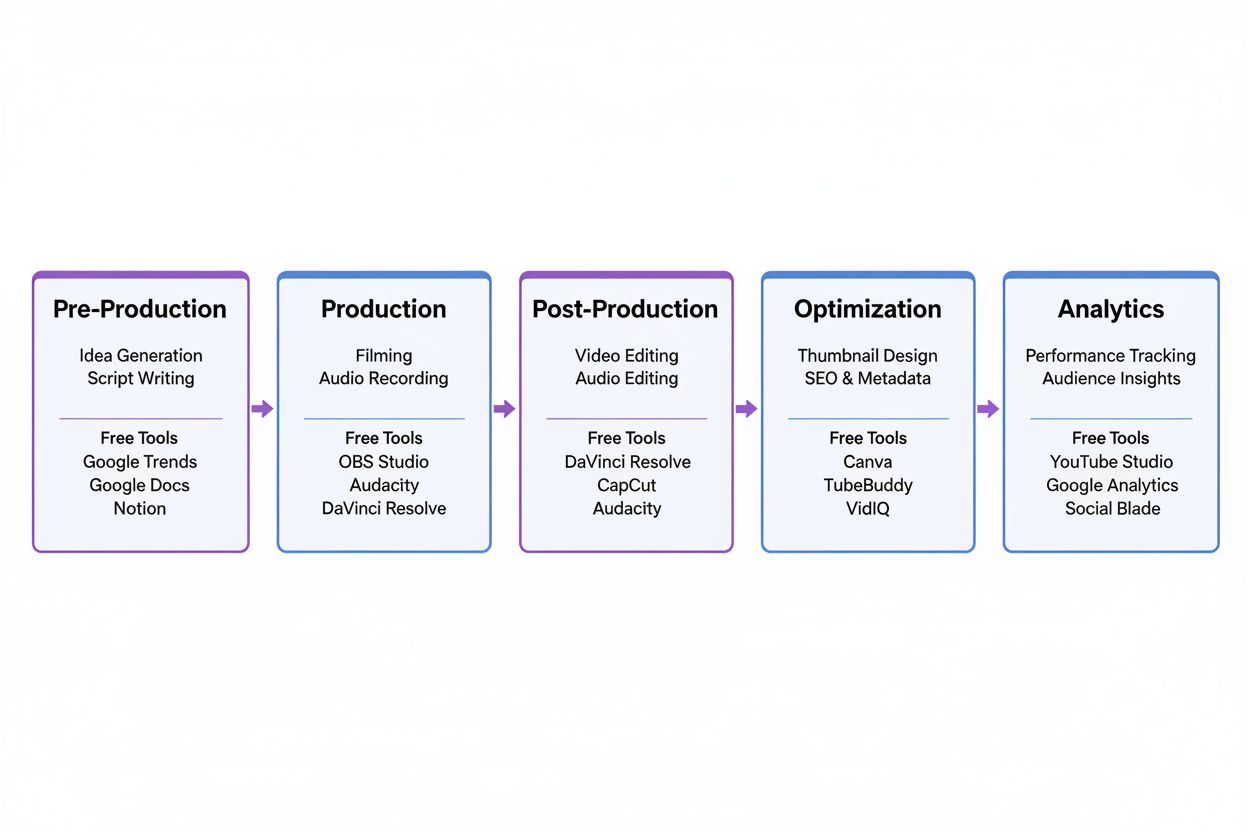
Having tools means nothing without a repeatable process. Here's a workflow using only free resources:
Pre-Production:
- Research keywords using YouTube autocomplete and Google Trends
- Check top-performing videos with TubeBuddy to understand the competition
- Outline your script using ChatGPT as a brainstorming partner
- Plan your thumbnail concept in Canva before filming
Production: 5. Record your video (phone cameras work fine for most content) 6. Record audio separately if possible for better quality control
Post-Production: 7. Edit video in DaVinci Resolve or CapCut depending on project needs 8. Clean audio in Audacity, removing noise and balancing levels 9. Add copyright-free music from YouTube Audio Library or Uppbeat 10. Insert B-roll from Pixabay to maintain visual interest
Optimization: 11. Create thumbnail in Canva using your brand template 12. Test thumbnail with ThumbnailCheck at actual size 13. Write title and description incorporating your target keyword 14. Add tags based on competitive research from TubeBuddy
Analysis: 15. Check YouTube Studio analytics 48 hours after upload 16. Note CTR, average view duration, and traffic sources 17. Compare performance to previous videos 18. Adjust future content based on what worked
This workflow takes longer initially, but each step becomes faster with repetition. After ten videos, you'll move through the process efficiently.
Common Mistakes When Using Free Tools
Free doesn't mean unlimited. Each tool has constraints that trip up new creators.
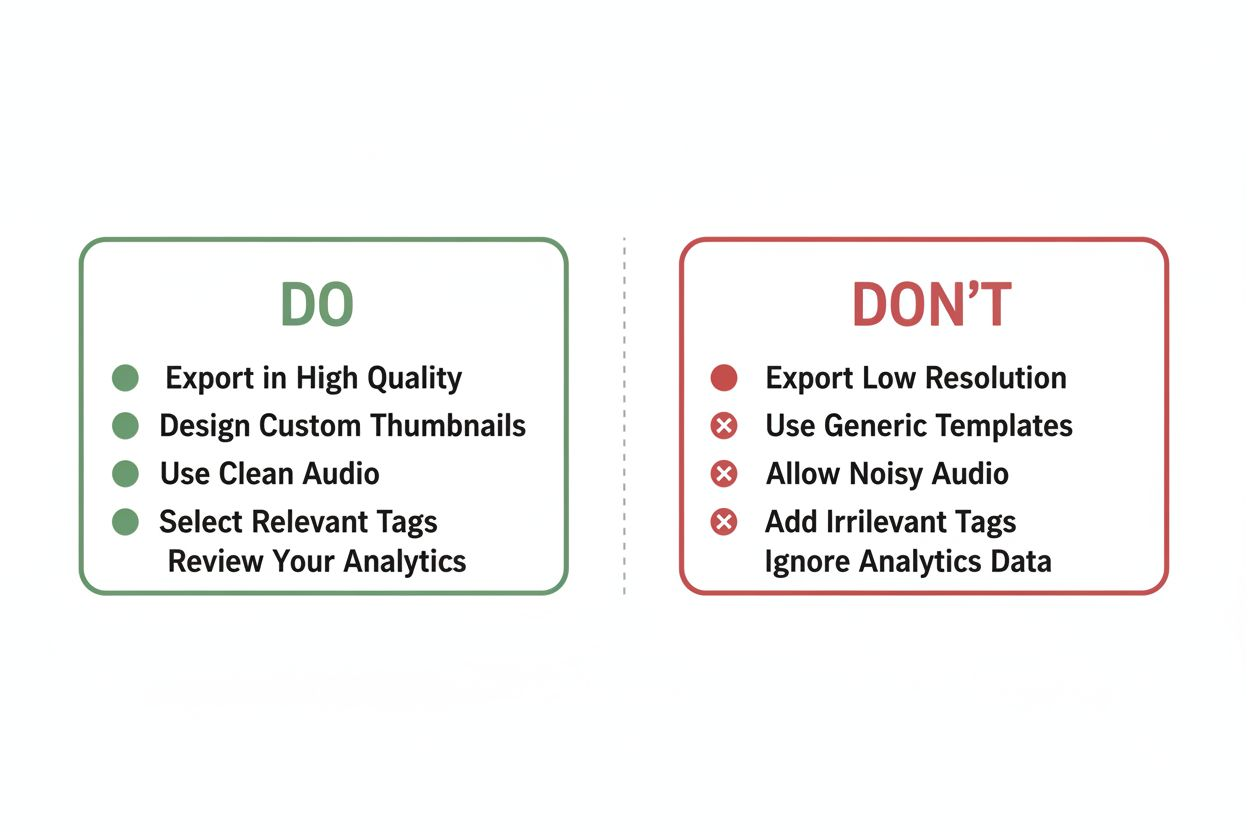
Ignoring Export Settings: Free video editors often default to low-quality export settings. Always check resolution (1080p minimum), frame rate (match your source footage), and bitrate (higher is better). A beautifully edited video exported at 720p looks amateur on modern displays.
Overusing Templates: Canva templates are convenient, but every new creator uses them. Customize colors, fonts, and layouts so your thumbnails don't look identical to thousands of others. Your brand needs visual distinction.
Skipping Audio Cleanup: Raw audio sounds worse than you think. Always run it through Audacity's noise reduction and normalization, even if you recorded in a quiet room. Viewers tolerate mediocre video quality but abandon channels with bad audio.
Copying Tags Blindly: Just because a successful video uses certain tags doesn't mean those tags helped it rank. Large channels rank on authority and audience loyalty, not tags. Focus on accurate, relevant tags that describe your specific content.
Ignoring the Data: YouTube Studio provides incredible insights, but only if you check it. Review analytics for every video. The algorithm tells you exactly what works through viewer behavior. Listen to it.
When to Consider Paid Upgrades
Free tools launch channels, but paid versions unlock features that save time as you grow.
Consider upgrading when:
- You're spending more time working around limitations than creating content
- Your channel generates revenue that justifies the expense
- Specific features would dramatically improve your workflow
- You've mastered the free version and need advanced capabilities
Don't upgrade because you think it will make your content better. Better content comes from practice, not premium features. A creator who has published 50 videos with free tools will outperform someone who published five videos with expensive software.
The free ecosystem is complete enough to build a six-figure channel. Many successful creators still use the same free tools they started with because they work.
Growing Beyond the Tools
Tools matter less than consistency and understanding your audience. The best free YouTube toolkit is worthless if you publish sporadically or ignore what viewers want.
Focus on these fundamentals:
- Upload on a consistent schedule (weekly minimum)
- Study your analytics after every video
- Improve one specific skill with each upload (editing, scripting, delivery)
- Engage with comments to build community
- Watch successful channels in your niche to understand what works
According to Uppbeat, creators can get everything needed to produce professional videos for free, from editing software to copyright-free music and B-roll footage. The tools exist. The knowledge is available. What separates successful channels from abandoned ones is execution.
Your first videos will be rough. That's expected. The creator who published 100 mediocre videos learned more than the perfectionist who published three polished ones. Volume builds skill faster than caution.
Your Free Toolkit Checklist
Before starting your channel, bookmark these resources:
Editing: DaVinci Resolve (professional projects), CapCut (quick turnarounds)
Audio: Audacity (cleanup and mixing), ElevenLabs (AI voiceovers when needed)
Thumbnails: Canva (templates and simplicity), GIMP (advanced control), ThumbnailCheck (preview testing)
SEO: YouTube autocomplete (keyword research), TubeBuddy (competitive analysis), Google Trends (topic validation)
Assets: YouTube Audio Library (music), Uppbeat (higher-quality music), Pixabay (B-roll footage)
Analytics: YouTube Studio (comprehensive data)
AI Assistance: ChatGPT (ideation and scripting), Descript (transcription and text-based editing)
Download and test each tool before you need it. Familiarize yourself with the interfaces. Watch tutorial videos for the ones that seem complicated. When you're ready to create, you'll know exactly which tool solves which problem.
The barrier to starting a YouTube channel is knowledge, not money. You now have both.