How to Build a Complete AI-Powered YouTube Workflow in 2025: From Idea to Upload

YouTube creators face a brutal reality: the platform rewards consistency, but production eats time. Scripting alone can take four hours. Editing? Another six. Thumbnails, SEO, captions—each step compounds the workload. Most creators burn out before they gain traction.
AI has changed this equation. According to YouTube CEO Neal Mohan's January 2026 annual letter, more than 1 million YouTube channels used AI creation tools every single day in December 2025. These creators are not cutting corners. They are building systems that let them publish weekly instead of monthly, test more ideas, and compete with teams while working solo.
This guide walks through every stage of a modern YouTube workflow—ideation, scripting, editing, SEO, and thumbnails—showing exactly which AI tools to use and how to integrate them. By the end, you will have a production system that cuts your per-video time in half while improving output quality.
Why AI Matters for YouTube Creators Right Now
The competitive baseline has shifted. According to YTZolo, the competitive baseline has fundamentally shifted—creators using AI produce more content, optimize more effectively, and grow faster. If you are still doing everything manually, you are competing against creators who publish twice as often with better SEO and more polished edits.
YouTube has paid out over $100 billion to creators, artists, and media companies globally over the last four years, but that money flows to channels that show up consistently. AI tools do not replace creativity. They remove the bottlenecks that prevent creative people from publishing.
The tools have also matured. Early AI video editors produced janky cuts and awkward pacing. Modern tools like YouTube's own "Edit with AI" feature, which turns raw footage into a polished first draft with music and effects, now handle nuance well enough that you can use their output as a starting point instead of a curiosity.
Solo creators using AI tools like ChatGPT for scripting and Runway ML for editing can operate like full-scale studios. That is not hype. It is the current state of available technology.
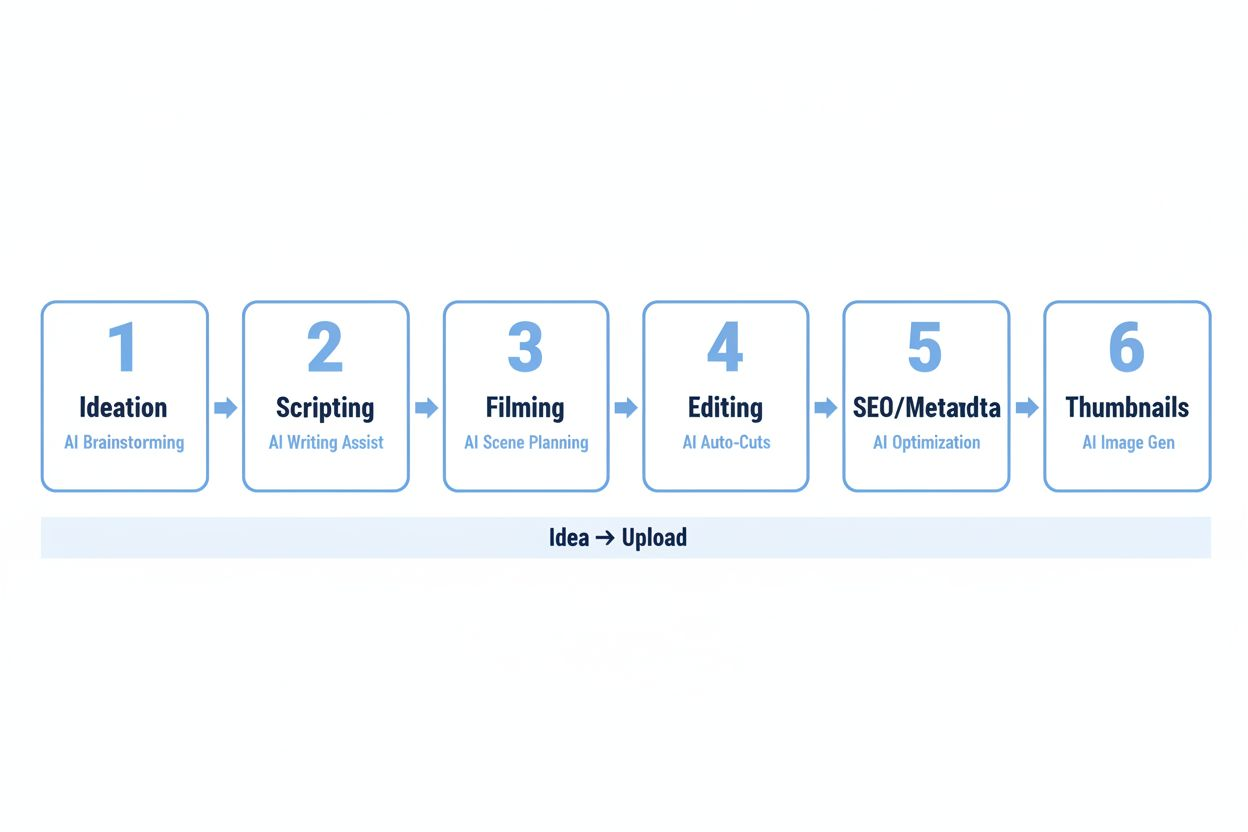
Stage 1: Idea Generation and Topic Research
Most creators waste time on videos nobody searches for. AI fixes this by analyzing what actually performs.
Using ChatGPT for Topic Brainstorming
Start with a prompt that combines your niche with current trends:
"I run a YouTube channel about [your niche]. My last three successful videos were about [topics]. Generate 20 video ideas that would appeal to beginners in this space, focusing on problems they search for on YouTube."
ChatGPT will produce a list. Most will be generic. Your job is to refine. Pick three promising ideas and ask for variations:
"Take idea #7 and give me five different angles, each targeting a specific pain point."
This process takes 10 minutes and produces more targeted ideas than an hour of manual brainstorming.
Validating Ideas with Search Data
AI-generated ideas mean nothing without search volume. Use TubeBuddy or VidIQ to check:
- Monthly search volume for your proposed title
- Competition level (how many high-authority channels already cover this)
- Related searches that might be easier to rank for
If your idea shows 5,000 monthly searches with low competition, you have a winner. If it shows 50 searches, move on.
Mining Competitor Content
Find the top three channels in your niche. Feed their recent video titles into ChatGPT:
"Here are 15 video titles from a competitor channel: [paste titles]. What topics are they covering repeatedly? What gaps do you see that I could fill?"
This reveals patterns. If a competitor posts "Photoshop Tutorial" videos every week but never covers mobile editing, that gap is your opportunity.
Stage 2: Script Writing with AI
Scripts separate rambling videos from tight, watchable ones. AI handles structure so you can focus on personality.
Building a Script Template
Before using AI, define your format. Most YouTube videos follow this structure:
- Hook (0-15 seconds): State the problem or promise
- Introduction (15-45 seconds): Who you are, what this video covers
- Main content (varies): 3-5 key points with examples
- Call to action (final 30 seconds): Subscribe, comment, watch next video
Give ChatGPT this template along with your topic:
"Write a YouTube script for a 10-minute video titled '[your title]'. Use this structure: [paste structure]. The tone should be conversational and direct. Include specific examples for each main point."
Editing AI Output for Your Voice
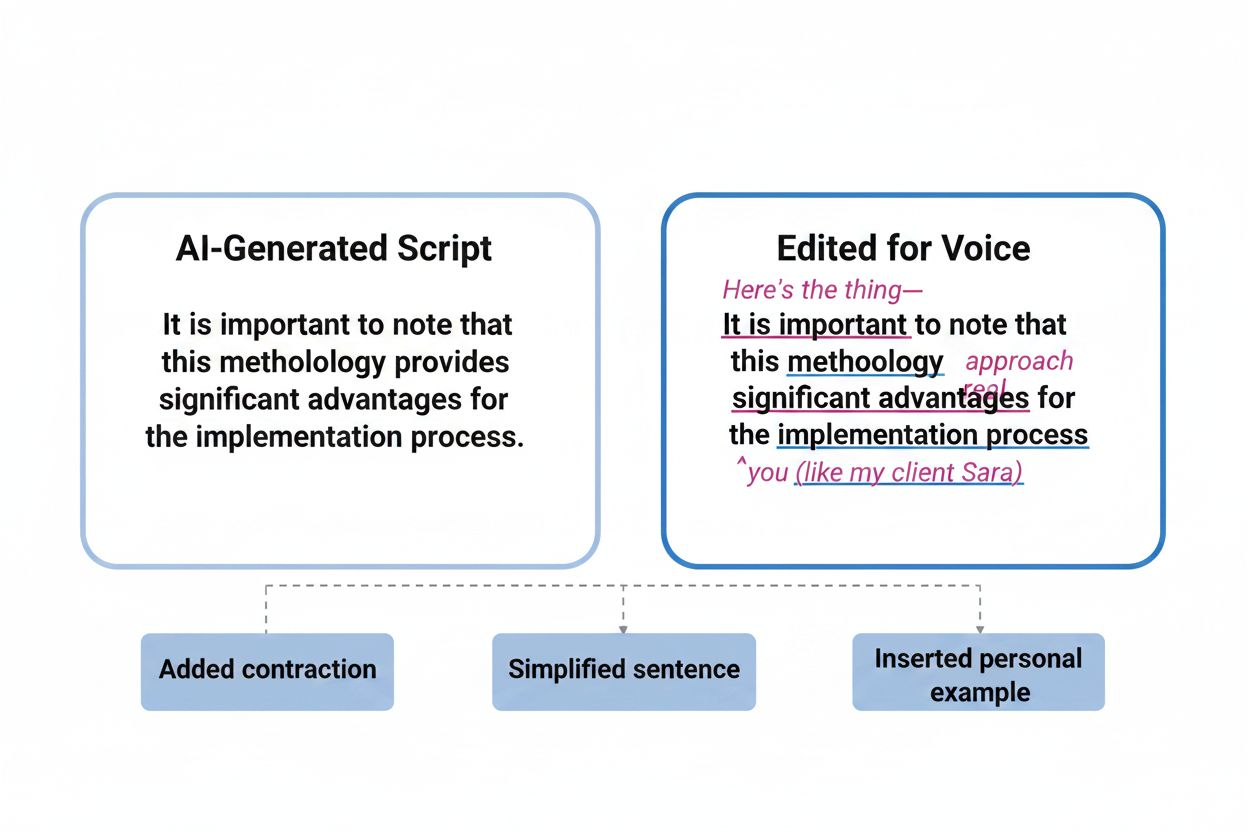
ChatGPT writes in a neutral, slightly formal tone. You need to rewrite for your actual speaking style. Read the script out loud. Anywhere you stumble, simplify. Cut sentences in half. Add contractions. Insert the phrases you actually use.
AI gives you the skeleton. You add the voice.
Using AI for B-Roll Suggestions
Ask ChatGPT to suggest visuals for each section:
"For this script section about [topic], what B-roll footage or screen recordings should I show? Be specific."
It will suggest things like "screen recording of the software interface," "close-up of hands typing," or "graph showing the data trend." This saves you from figuring out visuals during editing.
Stage 3: Filming and Raw Footage Capture
AI does not film for you, but it can optimize what you capture.
Shot List Generation
Feed your script to ChatGPT:
"Based on this script, create a shot list. Include camera angles, framing, and any props or visual aids I need."
This prevents the common mistake of finishing filming and realizing you are missing a critical shot.
Teleprompter Apps with AI Pacing
Apps like Speakflow or PromptSmart use AI to adjust scrolling speed based on your reading pace. They track your voice and slow down when you pause, speed up when you are on a roll. This keeps you from rushing or losing your place.
Automated Transcription During Filming
Record your video and immediately run it through Otter.ai or Descript. The transcription shows you exactly what you said, making it easy to identify sections that need re-recording before you break down your setup.
If you said "um" 47 times in a five-minute take, you will know before you waste time editing it.
Stage 4: Editing with AI Tools
Editing consumes more time than any other production stage. AI cuts that time dramatically.
YouTube's Native AI Editing
Google DeepMind's Veo 3 Fast is now integrated into YouTube Shorts for free, enabling video backgrounds and clips with sound. For longer videos, YouTube's "Edit with AI" feature analyzes your raw footage and assembles a first cut with music and basic effects.
Upload your footage to YouTube Studio. Select "Edit with AI." The system identifies key moments, removes dead air, and adds transitions. The output is not final, but it gives you a 70% complete edit in minutes instead of starting from a blank timeline.
Descript for Transcript-Based Editing
Descript lets you edit video by editing text. Upload your footage. It transcribes everything. Delete a sentence from the transcript, and Descript removes that section from the video. No timeline scrubbing required.
This is perfect for removing filler words, tightening explanations, and rearranging sections. The AI also offers "Studio Sound," which removes background noise and normalizes audio levels automatically.
Runway ML for Visual Effects
Need to remove an object from a shot? Change a background? Runway ML handles this without green screens. Upload your clip, select the object or area to modify, and describe what you want. The AI generates the change in seconds.
This used to require After Effects skills and hours of rotoscoping. Now it is a text prompt.
Auto-Captioning and Subtitle Styling
Captions improve watch time. Over 30% of daily logged-in YouTube viewers watched live content in Q2 2025 alone, and many watch with sound off. Tools like Kapwing or Subly generate accurate captions automatically, then let you style them with animations, colors, and positioning.
Upload your video. The AI transcribes and syncs captions. You adjust styling to match your brand. Export and upload to YouTube.
Stage 5: SEO and Metadata Optimization
Great videos fail because nobody finds them. AI-powered SEO fixes this.
Title Optimization
Your title determines click-through rate. Use ChatGPT to generate variations:
"Here is my video topic: [topic]. Generate 10 YouTube titles optimized for search and clicks. Each should be under 60 characters and include the keyword '[your keyword]'."
Test the top three titles with TubeBuddy's A/B testing feature to see which performs better.
Description Writing
YouTube descriptions need two things: keywords for search and links for engagement. Give ChatGPT your script summary:
"Write a YouTube video description for a video about [topic]. Include these keywords naturally: [list]. Add sections for timestamps, related videos, and social media links. Keep it under 5,000 characters."
The AI will structure everything properly. You just fill in your specific links.
Tag Generation
Tags help YouTube understand your content. Ask ChatGPT:
"Generate 30 relevant tags for a YouTube video about [topic]. Include a mix of broad and specific tags. Format as a comma-separated list."
Copy and paste directly into YouTube Studio.
Thumbnail Text Suggestions
Thumbnails need minimal, punchy text. ChatGPT can suggest options:
"My video is about [topic]. Suggest 5 short text phrases (3-5 words each) that would work on a thumbnail. Make them curiosity-driven."
Pick the one that best matches your visual concept.
Stage 6: Thumbnail Creation with AI
Thumbnails determine whether anyone clicks. AI speeds up creation without sacrificing quality.
AI Background Removal
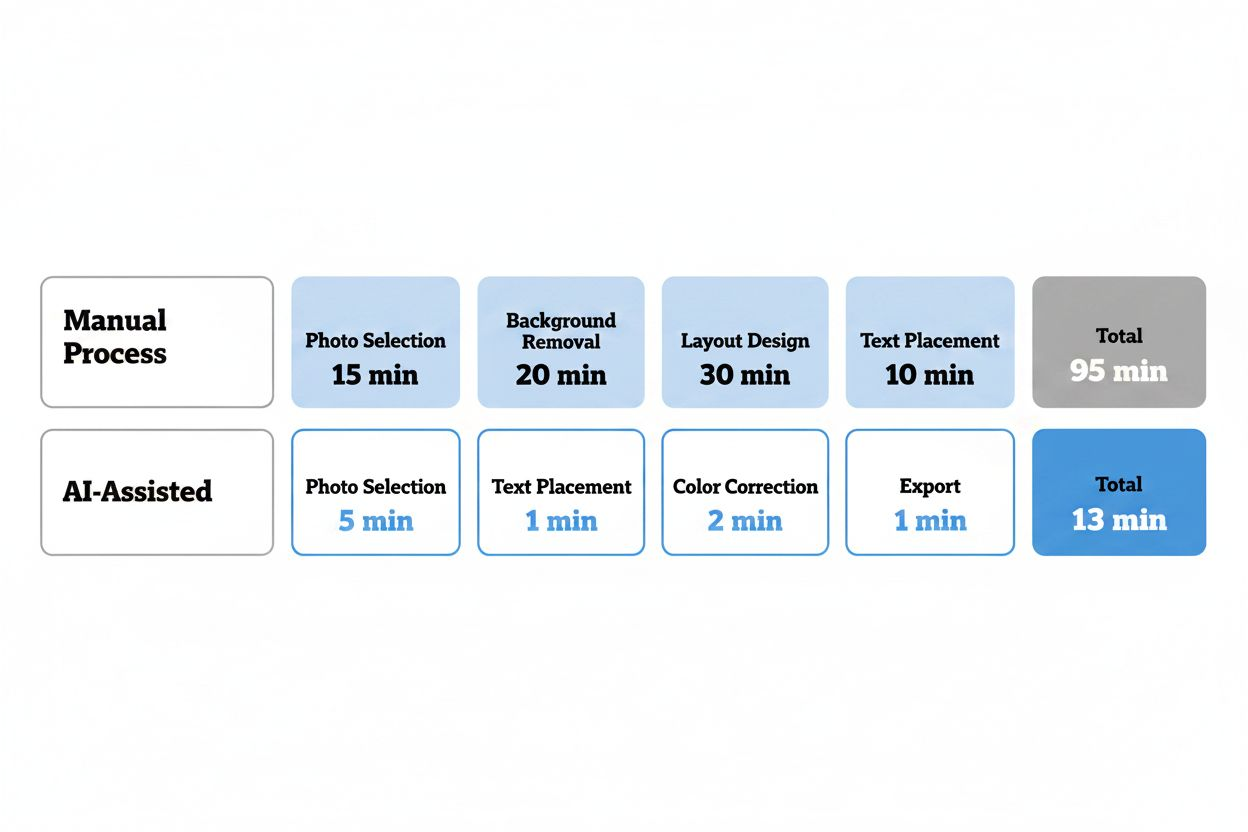
Tools like Remove.bg or Photoshop's AI-powered selection instantly cut you out of your filming background. Upload your photo. The AI identifies and removes the background in seconds. Drop yourself onto a custom background that fits your video topic.
Text and Layout with Canva's AI
Canva's Magic Design feature generates thumbnail layouts based on your topic. Type your video subject. Canva produces 10 layout options with text, images, and color schemes. Pick one and customize.
The AI handles composition and visual hierarchy, so you do not need design training to create professional thumbnails.
Face Expression Enhancement
Thumbnails with expressive faces get more clicks. Tools like Facetune or Photoshop's Neural Filters can enhance facial expressions, brighten eyes, and adjust lighting without making you look fake.
Subtle adjustments—slightly wider eyes, a bit more contrast—make your face pop in a tiny thumbnail without crossing into uncanny valley territory.
A/B Testing Thumbnail Variations
TubeBuddy lets you test two thumbnails against each other. Create two versions with different backgrounds or text. TubeBuddy rotates them and tracks which gets more clicks. After a statistically significant sample, it automatically switches all traffic to the winner.
This removes guesswork from thumbnail optimization.
Building Your Personal AI Workflow
The tools above work, but you need a system. Here is a production schedule that uses AI at every stage:
Monday (Ideation and Planning):
- Spend 30 minutes with ChatGPT generating and validating 4-5 video ideas
- Pick the top two based on search data
- Create shot lists and B-roll notes for both
Tuesday (Scripting):
- Use ChatGPT to draft scripts for both videos (1 hour total)
- Edit scripts for your voice while reading aloud (1 hour)
- Generate B-roll suggestions and teleprompter files
Wednesday (Filming):
- Film both videos back-to-back using teleprompter app (2-3 hours)
- Run immediate transcription to check for issues
- Capture any missing B-roll
Thursday (Editing Video 1):
- Upload to YouTube Studio, use "Edit with AI" for first cut (30 minutes)
- Refine edit in Descript, remove filler, tighten pacing (1-2 hours)
- Add captions and export
Friday (Editing Video 2 and SEO):
- Repeat editing process for second video (1-2 hours)
- Generate titles, descriptions, tags for both videos with ChatGPT (30 minutes)
- Create thumbnails with AI tools (30 minutes total)
Saturday (Upload and Optimization):
- Schedule both videos for the following week
- Set up A/B tests for thumbnails
- Review analytics from previous videos to inform next week's topics
This schedule produces two high-quality videos per week with about 12-15 hours of total work. Before AI, the same output would require 25-30 hours.
Common Mistakes When Using AI for YouTube
Mistake 1: Publishing AI Output Without Editing
AI-generated scripts sound generic because they are. ChatGPT does not know your speaking style, your audience's inside jokes, or your channel's running gags. If you publish raw AI output, viewers will notice the lack of personality.
Use AI for structure and research. Add yourself in the editing pass.
Mistake 2: Over-Relying on AI for Creative Decisions
AI suggests what is statistically likely to work. It cannot predict what will break through because breakthrough content is, by definition, unusual. If every creator uses the same AI prompts, every video starts to look the same.
Use AI for execution speed. Make creative decisions yourself.
Mistake 3: Ignoring YouTube's AI Detection
YouTube does not penalize AI-assisted content, but it does penalize low-quality content. If you use AI to mass-produce generic videos with no original value, YouTube's recommendation algorithm will bury you.
The goal is to use AI to create more high-quality content, not to spam the platform with volume.
Mistake 4: Skipping the Human Review
AI makes mistakes. Transcriptions mishear words. Auto-edits cut off sentences. Generated tags include irrelevant keywords. Always review AI output before publishing.
Spend the time you save on production doing quality control instead.
Advanced AI Techniques for Experienced Creators
Custom GPT Models for Your Channel
If you use ChatGPT Plus, you can create custom GPTs trained on your previous scripts, your style guide, and your audience feedback. This produces output that sounds more like you from the first draft.
Feed it 10-15 of your best-performing scripts. Tell it your tone, your audience, your common phrases. The custom model will generate scripts that need less editing.
AI-Powered Analytics Interpretation
Tools like Hootsuite Insights or YouTube's own analytics use AI to identify patterns you might miss. They flag things like "your audience drops off at the 3-minute mark in every video" or "videos with this keyword in the title get 40% more impressions."
These insights inform your content strategy more effectively than manually reviewing spreadsheets.
Automated Repurposing for Shorts and Social
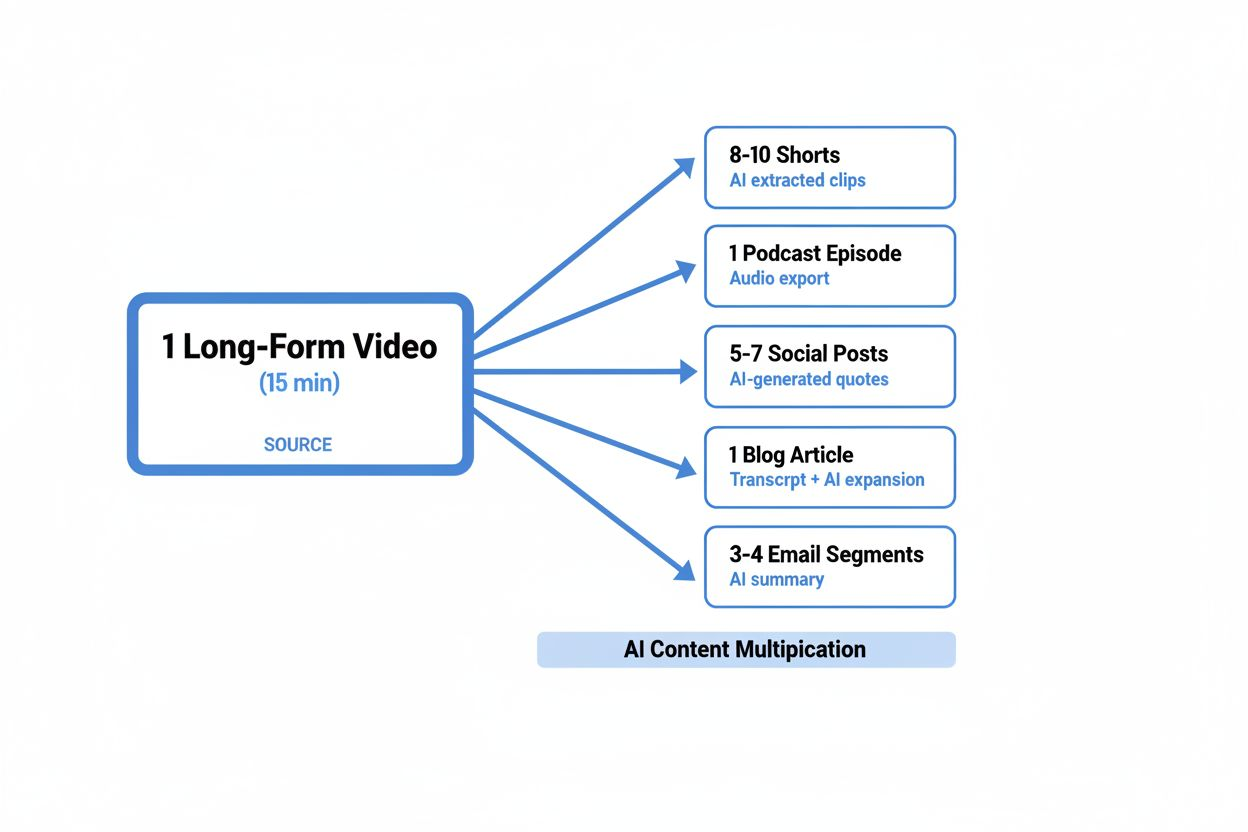
Tools like Opus Clip or Vizard analyze your long-form video and automatically extract short clips optimized for YouTube Shorts, TikTok, or Instagram Reels. They identify high-energy moments, add captions, and reframe vertical.
One 15-minute video becomes 8-10 short-form clips with minimal effort, multiplying your content output across platforms.
Voice Cloning for Voiceovers
If you need to re-record a line but already broke down your filming setup, tools like Descript's Overdub or ElevenLabs can generate your voice saying the corrected line. The AI matches your tone and pacing.
This is not for entire scripts, but it saves you from reshooting for minor corrections.
Tools and Costs Breakdown
Here is what a complete AI YouTube workflow costs:
Free Tier:
- ChatGPT (free version): Scripting and ideation
- YouTube Studio AI features: Editing and Shorts backgrounds
- Canva (free): Basic thumbnail design
- Descript (free tier): 1 hour of transcription per month
Total: $0/month
This setup works for beginners publishing 1-2 videos monthly.
Mid-Tier ($50-100/month):
- ChatGPT Plus ($20): Faster responses, custom GPTs
- Descript ($24): Unlimited transcription, Studio Sound
- TubeBuddy or VidIQ ($9-50): SEO and A/B testing
- Canva Pro ($13): More templates and AI features
Total: $66-107/month
This supports 4-8 videos monthly with better optimization.
Professional Tier ($150-300/month):
- All mid-tier tools
- Runway ML ($15-35): Advanced video effects
- ElevenLabs ($22-99): Voice cloning and AI voices
- Opus Clip ($29-129): Automated short-form repurposing
- Adobe Creative Cloud ($55): Photoshop, Premiere Pro with AI features
Total: $187-425/month
This supports daily uploads across multiple platforms with high production value.
Most creators should start with the free tier, upgrade to mid-tier once they hit 1,000 subscribers, and consider professional tools only when YouTube revenue covers the cost.
What Comes Next for AI and YouTube
According to AI Pro Studios, creators who adopt AI tools today will be ahead when voice-to-video and avatar co-hosts become mainstream. The technology is moving toward full video generation from text prompts.
Within 18 months, you will likely be able to describe a video concept and have AI generate the entire thing—script, visuals, voiceover, music. The creators who understand how to direct AI, how to add their unique perspective, and how to maintain quality control will dominate.
The ones who ignore AI will be competing with an ever-growing number of creators who publish more, optimize better, and iterate faster.
Your First Week with AI Tools
Start small. Pick one stage of your workflow and add AI this week.
If scripting is your bottleneck, use ChatGPT to generate your next script. Edit it heavily. See how much time you save.
If editing drags, try Descript's transcript-based editing on your next video. Cut your editing time in half.
If SEO confuses you, let ChatGPT write your next description and generate tags. Compare your impressions to previous videos.
Add one new AI tool each week. Within a month, you will have a complete system. Within two months, you will wonder how you ever worked without it.
The creators winning on YouTube in 2025 are not the ones with the biggest budgets or the fanciest cameras. They are the ones who figured out how to publish consistently without burning out. AI makes that possible.