YouTube Live's 2025 Feature Overhaul: A Practical Guide for Creators Ready to Go Live
YouTube just rolled out what it calls "the largest upgrade to Live we've ever made," and the numbers explain why. According to YouTube's official blog, over 30% of daily logged-in viewers watched live content in Q2 2025. That's nearly one in three people choosing live streams over pre-recorded videos. If you've been thinking about going live or want to level up your existing streams, this is your moment.
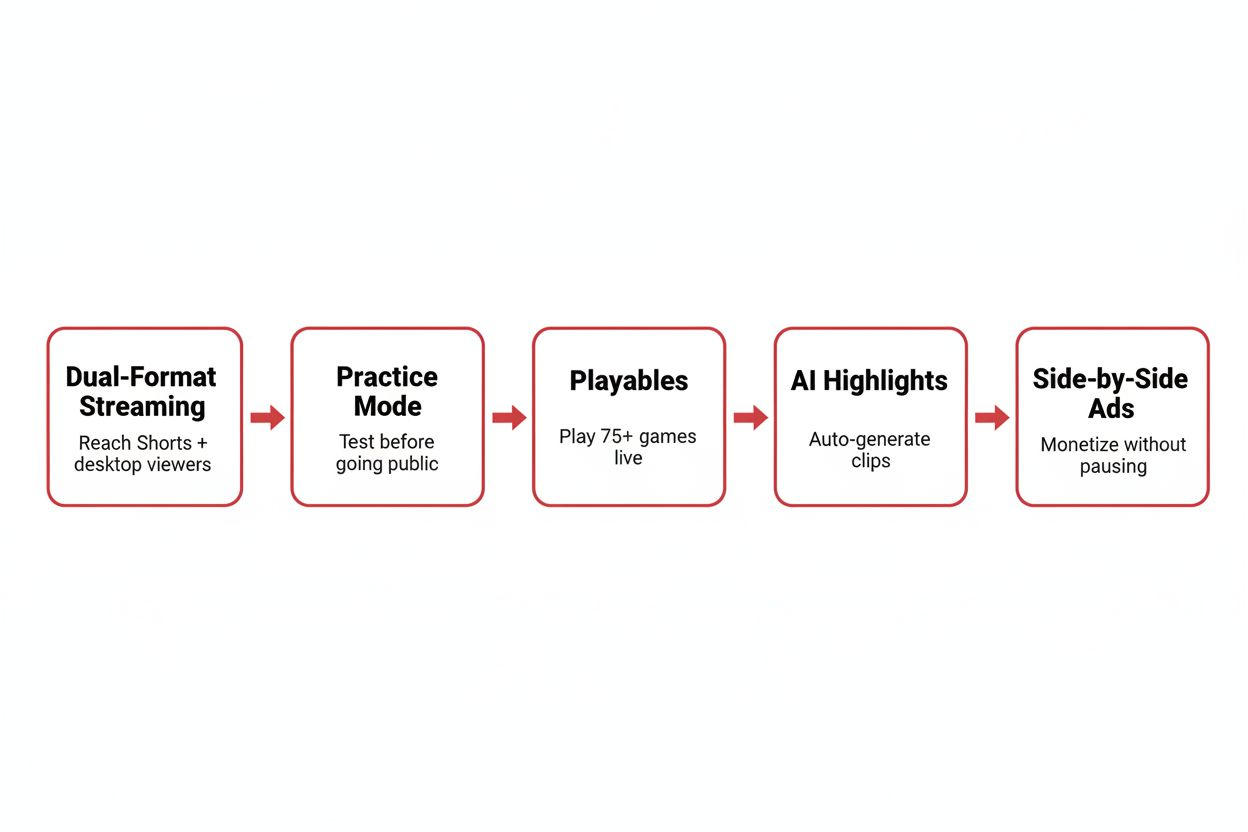
The 2025 update brings five major features: dual-format streaming that broadcasts horizontal and vertical simultaneously, Practice Mode for private testing, Playables with 75+ games you can play on stream, AI-generated highlight clips, and side-by-side ads that don't interrupt your content. Each feature solves a specific problem creators face. This guide walks through how to use them.
Dual-Format Streaming: One Broadcast, Two Audiences
The biggest change is dual-format streaming. You can now broadcast in both horizontal and vertical formats at the same time with a single unified chat. According to YouTube's blog, this means your stream reaches desktop viewers watching in landscape and mobile viewers scrolling through Shorts.
Here's why this matters: LiveReacting reports that vertical live streams now surface in the YouTube Shorts feed, reaching viewers who are just scrolling, not actively searching for streams. Before this update, you had to choose one format and miss the other audience entirely.
How to set up dual-format streaming:
- Open YouTube Studio on desktop or the YouTube app on mobile
- Click "Create" and select "Go live"
- In the stream setup screen, look for "Broadcast format"
- Select "Dual format (horizontal + vertical)"
- Position your camera and on-screen elements knowing both formats will be active
- Start your stream—YouTube automatically generates both versions
The unified chat is critical. Viewers watching horizontal on desktop and vertical on mobile all see and participate in the same conversation. You don't manage two separate chats or split your community.
What to adjust in your setup:
Your framing needs to work for both 16:9 (horizontal) and 9:16 (vertical). Keep yourself and any important visual elements in the center third of the frame. Text overlays, alerts, and graphics should stay in the safe zone that appears in both formats.
If you use OBS, Streamlabs, or another encoder, check that your streaming software supports dual output. Some third-party tools may need updates to handle this feature. YouTube's native mobile streaming supports it automatically.
TechCrunch notes that Twitch introduced dual streaming recently, but YouTube's implementation bridges horizontal and vertical in one broadcast rather than requiring separate streams. This gives you more reach with less technical complexity.
Practice Mode: Test Everything Before You Go Public
Practice Mode lets you test your full setup privately before going public. According to YouTube's blog, this is a complete private rehearsal space where you can check every technical element without viewers seeing your mistakes.
LiveReacting explains that Practice Mode catches common mistakes like silent streams, echo, bad exposure, and stream key mix-ups before they go public. These are the issues that kill a stream in the first 30 seconds and send viewers clicking away.
How to use Practice Mode:
- In YouTube Studio, start setting up a livestream as usual
- Before clicking "Go live," toggle on "Practice Mode"
- Your stream starts, but only you can see it
- Check your audio levels, camera framing, lighting, overlays, and alerts
- Test scene transitions if you use multiple cameras or screen shares
- Verify your microphone is the correct input and not echoing
- When everything works, click "Go public" to make the stream visible
Practice Mode is especially useful if you stream from new locations, use new equipment, or try complex setups with multiple cameras and audio sources. You can invite specific people to view your practice stream by sharing a private link, which helps if you want a friend to check your audio quality or test your chat interaction.
Common issues Practice Mode helps you catch:
- Audio not transmitting (you see yourself talking but hear nothing)
- Wrong microphone selected (laptop mic instead of your USB mic)
- Echo from monitoring your own audio through speakers
- Camera exposure too dark or blown out
- Overlays covering your face or important content
- Alerts not triggering when someone subscribes or donates
- Bitrate too low causing pixelation
- Stream key entered incorrectly (stream won't start at all)
Run through your entire intro, test a few minutes of content, and interact with chat as if viewers were present. This 5-minute rehearsal prevents 50 minutes of technical apologies during your actual stream.
Playables on Live: 75+ Games You Can Stream
Playables on Live gives you access to 75+ games you can play while interacting with chat and monetizing the stream, according to YouTube's blog. These are casual games built into YouTube, not external titles you need to install or capture separately.
TechCrunch suggests that Playables could serve as a low-pressure entry point for new livestreamers making a first impression with viewers. Playing a simple game gives you something to do with your hands and a natural conversation starter while you build comfort talking to a camera.
How to start a Playables stream:
- Go to YouTube Studio and click "Create" then "Go live"
- In the stream type options, select "Playables"
- Browse the game library—categories include puzzle, arcade, strategy, and multiplayer
- Select a game and click "Play live"
- Your stream starts with the game on screen and your camera in a corner or side panel
- Chat appears alongside the game so you can read and respond while playing
The games are designed for streaming. They have natural pause points for you to read chat, they're easy to explain to viewers who just joined, and they don't require intense focus that prevents you from talking.
Best practices for Playables streams:
Choose games that match your content style. If you run a tech channel, puzzle or strategy games might fit better than arcade shooters. If you're a comedy creator, chaotic multiplayer games give you more material to react to.
Explain the game rules in the first 2 minutes for new viewers. Even simple games confuse people if they join mid-stream and don't understand the objective.
Set challenges with your chat. "If I beat this level in under 3 minutes, I'll do X" or "First person to guess my score wins a shoutout." This turns passive watching into active participation.
Use Playables for regular schedule slots. "Every Friday at 7pm I'm streaming puzzle games and answering your questions" gives viewers a reason to return and builds a routine.
AI-Generated Highlight Clips: Automatic Shorts from Your Streams
YouTube's AI now automatically selects the best moments from your livestream and generates ready-to-share Shorts clips saved as drafts in YouTube Studio, according to LiveReacting. This happens without any action from you.
After your stream ends, check YouTube Studio. You'll find 3-5 short clips (usually 15-60 seconds each) pulled from moments where engagement spiked—high chat activity, loud reactions from you, or significant events in the stream.
How the AI selects clips:
The algorithm looks for several signals. Sudden increases in live viewer count suggest something interesting happened. Spikes in chat messages indicate viewers reacting to a moment. Audio analysis detects laughter, excitement, or surprise in your voice. If you're playing a game, it identifies wins, losses, or unexpected outcomes.
The clips are saved as drafts, not published automatically. You review them, edit if needed, add a title and description, and publish manually. This gives you control while saving the time you'd spend scrubbing through a 2-hour stream looking for highlights.
How to use AI-generated clips effectively:
Review clips within 24 hours of your stream ending. Shorts perform best when published quickly while the topic is still relevant.
Edit the clips if needed. Trim a few seconds from the start or end, adjust the framing for vertical format, or add text overlays explaining context.
Write titles that work for viewers who didn't watch the live stream. "When the boss fight went completely wrong" is better than "That moment from today's stream."
Publish clips throughout the week between streams. If you stream Tuesdays and Fridays, publish one clip Wednesday and another Thursday to maintain visibility.
Use clips to promote your next stream. Add a comment or end screen saying "I'm live again Friday at 6pm—join me for more."
What if the AI picks bad moments?
It happens. The algorithm isn't perfect. Delete clips that don't represent your content well or lack context. You're not obligated to publish everything it generates.
If the AI consistently misses your best moments, that's feedback. It might mean your peaks aren't registering as engagement spikes. Encourage more chat interaction during highlight-worthy moments, or add verbal emphasis to help the audio analysis.
Side-by-Side Ads: Monetize Without Interrupting Content
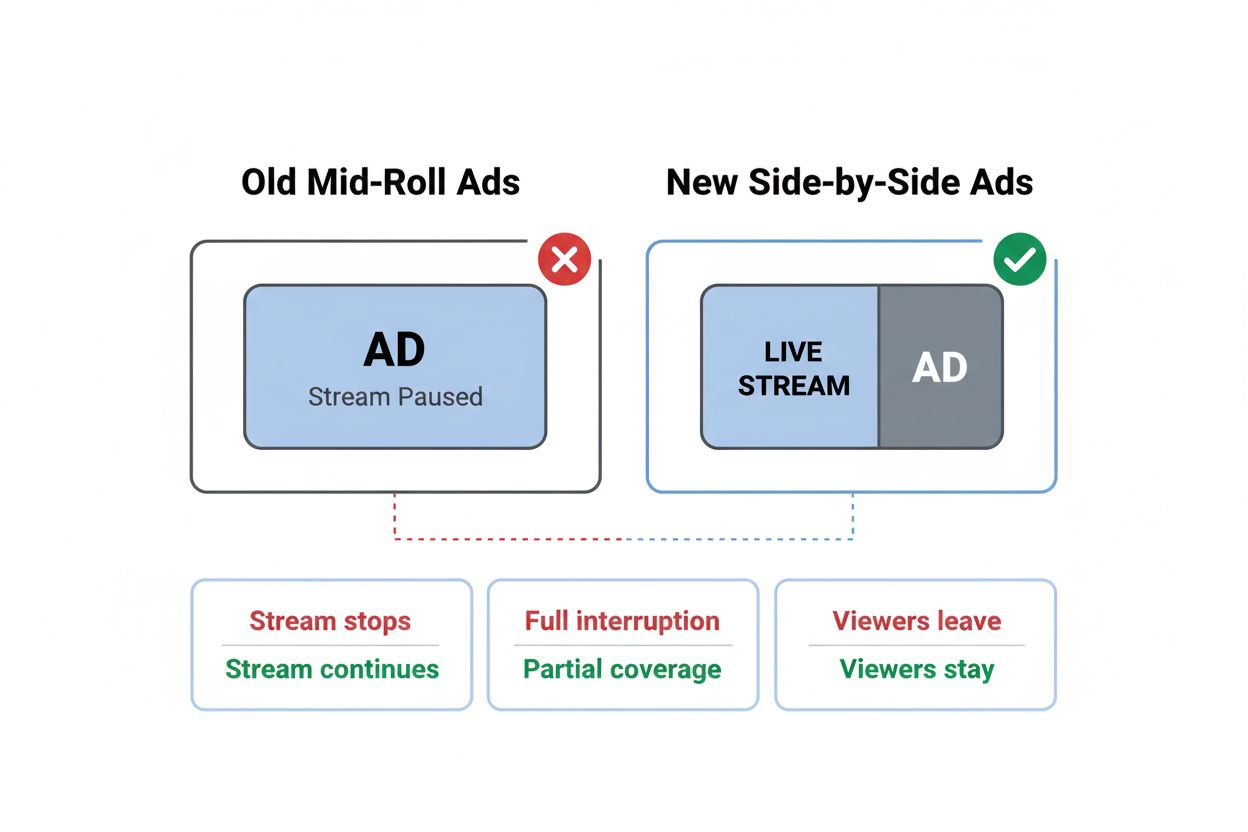
Side-by-side ads display next to your content instead of pausing the stream, according to YouTube's blog. This is a significant change from mid-roll ads that stop your stream entirely.
LiveReacting explains that side-by-side ads appear on the right half of the screen while the stream continues on the left. Stream audio mutes briefly then restores. The ad runs for 15-30 seconds, then disappears.
How side-by-side ads work:
You don't control when they appear. YouTube's algorithm inserts them during natural breaks—when you pause to read chat, transition between topics, or take a drink of water. The system avoids placing ads during high-intensity moments like game boss fights or emotional story peaks.
Viewers see your stream shrink to the left side of the screen. The ad plays on the right. Your video continues playing, but audio ducks down for the ad's audio, then comes back up when the ad finishes.
How to optimize your stream for side-by-side ads:
Keep important visual elements on the left side of your frame. When the ad appears, the right side of your stream gets covered. If critical information or your face is on the right, viewers miss it.
Build in natural pauses. If you talk non-stop for 40 minutes, the algorithm will eventually insert an ad during an awkward moment. Plan breaks every 15-20 minutes where an ad interruption would be less disruptive.
Don't reference the ads directly. Saying "Sorry about that ad" or "Welcome back from the commercial" breaks immersion. Treat the stream as continuous.
Monitor your analytics. YouTube Studio shows how many ads ran during your stream and revenue generated. If you're getting too many ads and viewers complain, you can adjust your monetization settings to reduce frequency.
Eligibility for side-by-side ads:
You need to be in the YouTube Partner Program (1,000 subscribers and 4,000 watch hours in the past 12 months, or 1,000 subscribers and 10 million Shorts views in the past 90 days). You also need to have monetization enabled for live streams in your YouTube Studio settings.
Members-Only Stream Transitions: Reward Your Supporters
Channel membership creators can now transition from public to members-only livestreams without disruption, according to YouTube's blog. This lets you start a stream open to everyone, then switch to members-only for exclusive content, all in the same broadcast.
How to transition mid-stream:
- Start your livestream as public
- When you're ready to switch to members-only, open your YouTube Studio dashboard
- Click "Stream settings" (you can do this without stopping the stream)
- Change the visibility from "Public" to "Members only"
- Click "Save"
- Non-members see a message that the stream is now for members only
- Members continue watching without interruption
This works well for a structure like: 30 minutes of public content where you discuss general topics and welcome new viewers, then 30 minutes of members-only Q&A, behind-the-scenes discussion, or exclusive announcements.
Why this matters:
Before this update, switching to members-only meant ending the stream and starting a new one. You lost momentum, viewers had to find the new stream, and chat conversations got split across two separate streams.
Now the transition is seamless. Members stay in the same stream, the chat continues, and you don't lose your place in the YouTube algorithm's live recommendations.
LiveReacting notes that public and members-only stream segments generate separate performance metrics in YouTube Analytics. You can see how many people watched the public portion versus the members-only portion, which helps you understand the value of your membership offering.
Best practices for public-to-members transitions:
Announce the transition 5 minutes in advance. "In 5 minutes we're switching to members-only for exclusive Q&A. If you're not a member yet, now's a great time to join."
Make the members-only content genuinely exclusive. Don't just extend the public discussion. Offer something different—deeper dives, personal stories, direct feedback on member projects, or early announcements.
Keep the public portion valuable. If the first 30 minutes feel like a teaser designed only to sell memberships, viewers will leave. The public segment should stand alone as worthwhile content.
Use the transition as a membership pitch, but don't be pushy. "We're about to switch to members-only. If you want to join us, click the Join button below. If not, thanks for watching—see you next stream."
Technical Requirements and Compatibility
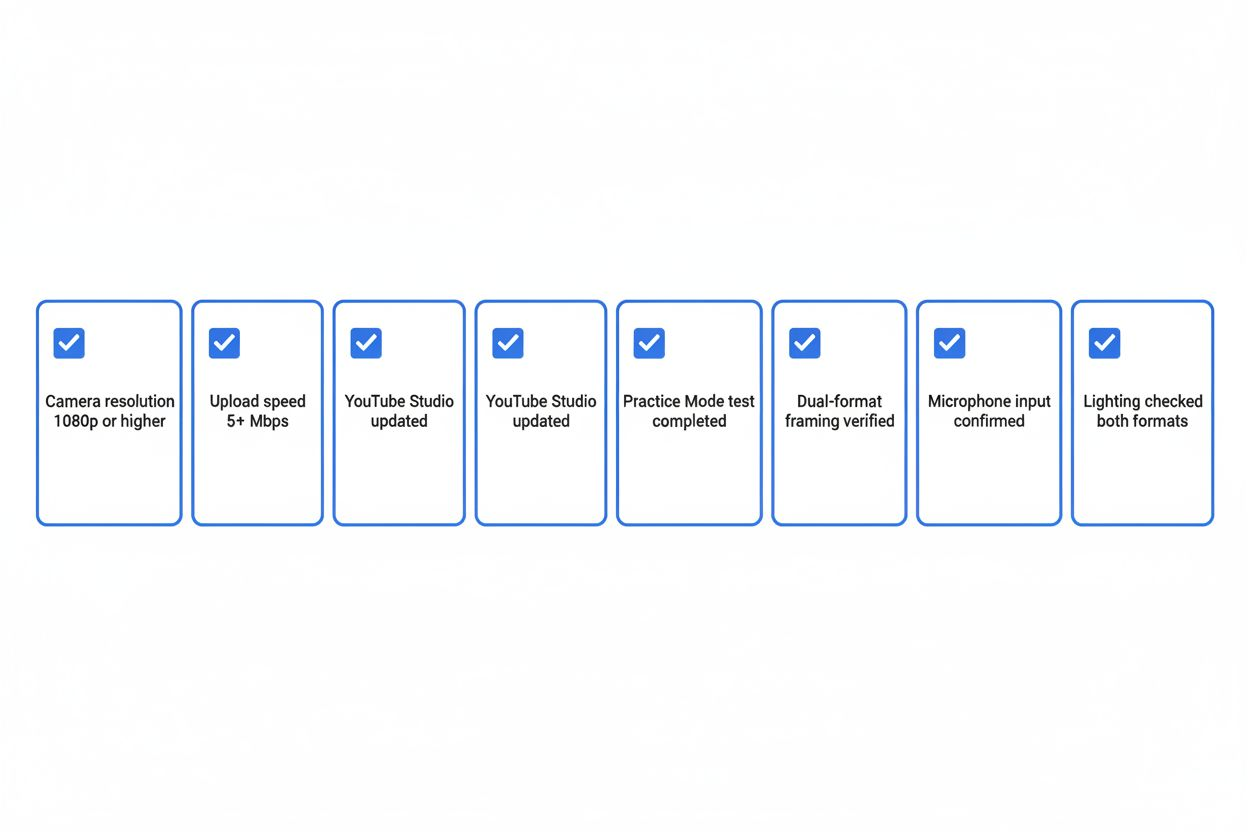
Before you use these features, verify your setup meets the requirements.
For dual-format streaming:
- YouTube Studio access (desktop or mobile app)
- Minimum 1080p camera resolution recommended (720p works but looks pixelated in horizontal)
- Stable internet connection with at least 5 Mbps upload speed
- If using third-party encoders (OBS, Streamlabs), check for software updates that support dual output
For Practice Mode:
- Available to all creators with live streaming access
- No subscriber minimum
- Works with both YouTube Studio's built-in streaming and third-party encoders
For Playables:
- Available in YouTube Studio under "Go live" options
- No special equipment needed beyond a camera and microphone
- Works on desktop and mobile
For AI-generated clips:
- Automatic for all livestreams over 10 minutes
- No action required from you
- Clips appear in YouTube Studio drafts within 24 hours of stream ending
For side-by-side ads:
- Requires YouTube Partner Program membership
- Monetization must be enabled for live streams
- Available in most countries where YouTube monetization is supported
For members-only transitions:
- Requires active channel memberships feature
- Must have at least 1,000 subscribers
- Members-only streams count toward watch time for monetization eligibility
Combining Features for Maximum Impact
These features work better together than separately. Here's how to combine them in a single stream.
Example workflow for a gaming stream:
- Use Practice Mode to test your setup—verify game audio, microphone, camera framing, and overlays
- Start your stream in dual-format to reach both desktop and mobile viewers
- Begin with 20 minutes of public gameplay using Playables
- Transition to members-only for exclusive strategy discussion or subscriber games
- Let AI generate highlight clips from your best moments
- Monetize throughout with side-by-side ads that don't interrupt gameplay
Example workflow for a Q&A or tutorial stream:
- Practice Mode to check audio clarity and screen share quality
- Dual-format streaming so mobile viewers can watch while commuting
- Start public, answer general questions for 30 minutes
- Switch to members-only for personalized advice or portfolio reviews
- AI clips pull your best answers for Shorts
- Side-by-side ads run during natural pauses between questions
Example workflow for a first-time streamer:
- Use Practice Mode extensively—do multiple test runs until you're comfortable
- Start with Playables instead of talking-head content (easier to fill time while you build confidence)
- Stream in dual-format to maximize your potential audience
- Keep it public for your first few streams (don't worry about members-only yet)
- Review AI-generated clips to see which moments resonated
- Enable side-by-side ads once you're eligible for monetization
Common Mistakes to Avoid
Ignoring vertical framing in dual-format streams
Your horizontal setup might look great, but if your face is cut off in vertical or text is unreadable, you're losing the Shorts audience. Test both views before going live.
Skipping Practice Mode because you're experienced
Even experienced streamers hit technical issues. New locations, new equipment, software updates—any change can break something. Five minutes of practice prevents disasters.
Playing Playables without talking
The games are a tool for engagement, not a replacement for personality. If you go silent while playing, viewers leave. Narrate your decisions, react to outcomes, and read chat constantly.
Publishing every AI-generated clip
Quality over quantity. One great clip performs better than five mediocre ones. Be selective.
Placing ads too frequently
More ads don't always mean more revenue if viewers leave. Find the balance between monetization and viewer experience.
Switching to members-only without warning
Surprise transitions frustrate viewers. Always announce the switch in advance and explain what members-only content will include.
What This Means for Your Content Strategy
YouTube's 2025 live streaming updates aren't just new features. They represent a shift in how the platform prioritizes live content.
The 30% of daily logged-in viewers watching live content in Q2 2025 (according to YouTube's blog) shows that live is now a core part of YouTube's ecosystem, not a side feature. The platform is investing in tools that make streaming easier and more profitable.
Dual-format streaming acknowledges that audiences are fragmented across devices and viewing contexts. You can't just optimize for desktop anymore. Vertical matters.
Practice Mode lowers the barrier to entry. New creators who were intimidated by the technical complexity now have a safe space to learn.
Playables gives creators who don't play AAA games or don't have gaming PCs a way into the gaming/streaming space.
AI-generated clips solve the time problem. Creators who couldn't afford to hire editors or spend hours making Shorts now get them automatically.
Side-by-side ads make monetization less disruptive, which keeps viewers watching longer, which increases revenue.
If you've been waiting for the right time to start streaming or to take your streams more seriously, this is it. The tools are better, the audience is bigger, and the platform is actively supporting live creators.
Set up Practice Mode this week. Test dual-format streaming. Try a Playables stream even if you've never streamed games before. Review your AI-generated clips and publish the best ones. Enable side-by-side ads if you're eligible.
YouTube just made live streaming significantly easier and more profitable. The creators who adopt these features early will build audiences before the platform gets crowded with everyone else figuring it out.