Video Quality 101: Essential Elements for Successful YouTube Content

YouTube compresses every video you upload. That single fact explains most of the quality problems creators run into, and understanding it changes how you approach everything from camera settings to export presets. A video that looks sharp on your editing timeline can come out the other side looking muddy, soft, or washed out if you have not prepared it correctly.
This guide covers the full chain: capture, editing, export, and upload. Each stage matters, and a weak link at any point carries through to the final result.
Why Your 1080p Video Looks Blurry on YouTube
This is the most common complaint from new creators, and the cause is almost always compression, not the camera.
YouTube uses a codec called VP9 (and increasingly AV1) to compress uploaded videos. The platform re-encodes everything you upload, regardless of how good your source file looks. If your video does not give the encoder enough information to work with, the result looks soft and blocky, especially in areas with motion or fine detail.
Several things make this worse:
- Uploading a file that was already heavily compressed before upload
- Using a low bitrate in your export settings
- Shooting in a format that discards color information aggressively in-camera
- Fast motion, busy backgrounds, or high-contrast textures (trees, fabric, crowds) that are hard for codecs to handle
There is also a processing delay. Immediately after upload, YouTube serves the video at lower quality while it finishes processing the higher-resolution versions. If your video looks bad right after publishing, wait an hour and check again. The 1080p or 4K version may not be available yet.
One more factor: YouTube codec deployment by view count follows a clear pattern - videos under roughly 3,000 views get H.264, VP9 kicks in around 3,500 views, and AV1 is reserved mainly for videos with over 34 million views. A video with ten views may look noticeably worse than the same file after it has accumulated thousands. This is outside your control, but knowing it exists saves a lot of troubleshooting time.
Camera Settings That Actually Matter
You do not need an expensive camera to produce clean footage. You do need to understand a few settings that have an outsized effect on quality.
Resolution and Frame Rate
Shooting in 4K and delivering in 1080p is a legitimate strategy. The gap in YouTube delivered bitrates is substantial: the 4K VP9 encode runs at around 8 Mbps while the 1080p encode sits at roughly 1 Mbps, so a 4K video downscaled to 1080p in post often looks sharper than footage shot natively at 1080p. If your camera supports 4K and your computer can handle the editing load, this approach is worth trying.
Frame rate affects how your footage feels and how well it survives compression. Standard options are 24fps (cinematic look), 30fps (broadcast standard), and 60fps (smooth, good for gaming or fast action). Pick one and stay consistent within a project. Mixing frame rates creates problems in the edit and can confuse the encoder.
Exposure and Shutter Speed
Overexposed footage loses detail in highlights permanently. Underexposed footage looks noisy. Neither can be fully fixed in post. Expose correctly in camera.
A common rule for shutter speed is to set it at roughly double your frame rate. Shooting at 30fps means a shutter speed around 1/60. This produces natural-looking motion blur. Shooting at a much higher shutter speed (1/500 at 30fps, for example) creates a choppy, stroboscopic look that some people find jarring.
Color Profiles
Most cameras offer a "flat" or "log" color profile that captures more dynamic range by reducing contrast and saturation in-camera. This gives you more flexibility in color grading but requires that you actually grade the footage. If you shoot in a flat profile and upload without grading, the result looks washed out and gray.
If you are not grading your footage, shoot in a standard color profile. The image will look better straight out of camera and will not require correction before export.
Lighting: The Biggest Quality Multiplier
No camera setting compensates for bad light. A smartphone with good lighting produces better-looking footage than a professional camera in a dark room.
The reason is noise. As research on low-light video characteristics confirms, low dynamic range and high noise are the defining problems of footage shot in poor light. Cameras compensate by raising ISO (sensitivity), which introduces grain and color noise. That noise is unpredictable and hard for compression algorithms to handle, so it gets smeared into ugly artifacts.
Good lighting does not require expensive gear. A large window provides soft, flattering light for free. If you are shooting indoors without natural light, a single softbox or a ring light placed at roughly 45 degrees to your subject makes a significant difference.
Three things to avoid:
- Shooting with a bright window or light source directly behind your subject (this creates silhouettes)
- Mixing light sources with very different color temperatures (warm tungsten bulbs mixed with cool daylight looks strange)
- Overhead lighting that creates harsh shadows under eyes and nose
Consistency matters too. If your lighting changes between cuts, it is distracting and makes the video look amateurish regardless of camera quality.
Audio Quality and Its Relationship to Perceived Video Quality
This sounds counterintuitive, but bad audio makes video look worse. Viewers perceive overall production quality as a package. Crisp, clear audio makes the image feel sharper. Muddy, echo-heavy audio makes everything feel low-budget, even if the image is technically excellent.
The built-in microphone on most cameras and laptops picks up room noise, echo, and handling sounds. An external microphone placed close to the speaker solves most of these problems. A lavalier (clip-on) microphone or a directional shotgun microphone mounted on the camera are both reasonable starting points.
Record in the quietest space available. Soft furnishings (carpet, curtains, bookshelves) absorb echo. Hard surfaces (tile, bare walls, glass) reflect it. A treated room sounds noticeably better than an untreated one, even with the same microphone.
Editing and Color Grading for YouTube
Your editing software and workflow affect final quality in ways that are easy to overlook.
Sequence Settings
Match your sequence or timeline settings to your footage. If you shot in 4K at 30fps, your timeline should be set to 4K at 30fps. Mismatched settings force the software to scale or convert footage on the fly, which can introduce softness or artifacts.
Color Grading
Color grading is not just an aesthetic choice. A well-graded video holds up better under YouTube's compression because the encoder has cleaner, more consistent information to work with. Footage with extreme contrast, crushed blacks, or blown highlights is harder to compress cleanly.
Aim for:
- Blacks that are dark but not crushed (you should still see detail in shadows)
- Highlights that retain texture and detail
- Skin tones that look natural under your specific lighting conditions
- Consistent color temperature across cuts
You do not need to do anything dramatic. A subtle grade that corrects exposure and white balance is more valuable than a heavy stylized look that introduces compression problems.
Sharpening
Most editing software lets you add sharpening to footage. A small amount can help, but over-sharpening creates halos around edges and introduces noise that compresses badly. If you are sharpening, keep it subtle.
Export Settings: The Most Overlooked Step
This is where most quality problems originate. Getting your export settings right is the single highest-leverage thing you can do for YouTube quality.
Codec
Export in H.264 or H.265 (also called HEVC). H.264 is more universally compatible and processes faster. H.265 produces smaller files at similar quality, which can speed up upload times, but some older editing software handles it less reliably.
Avoid exporting in formats like ProRes or DNxHD for your upload file. These are excellent intermediate formats for editing but produce enormous files that YouTube still has to re-encode. The quality advantage over a high-bitrate H.264 file is minimal after YouTube's compression.
Bitrate
Bitrate is the amount of data per second in your video file. Higher bitrate means more information for YouTube's encoder to work with, which generally produces better results after compression.
For 1080p at 30fps, a bitrate of 16 to 20 Mbps is a solid target. For 4K at 30fps, YouTube 4K upload bitrate guidance points to around 35 Mbps as the sweet spot for quality. Going significantly higher than these numbers produces diminishing returns and much larger file sizes without meaningful quality improvements after YouTube processes the file.
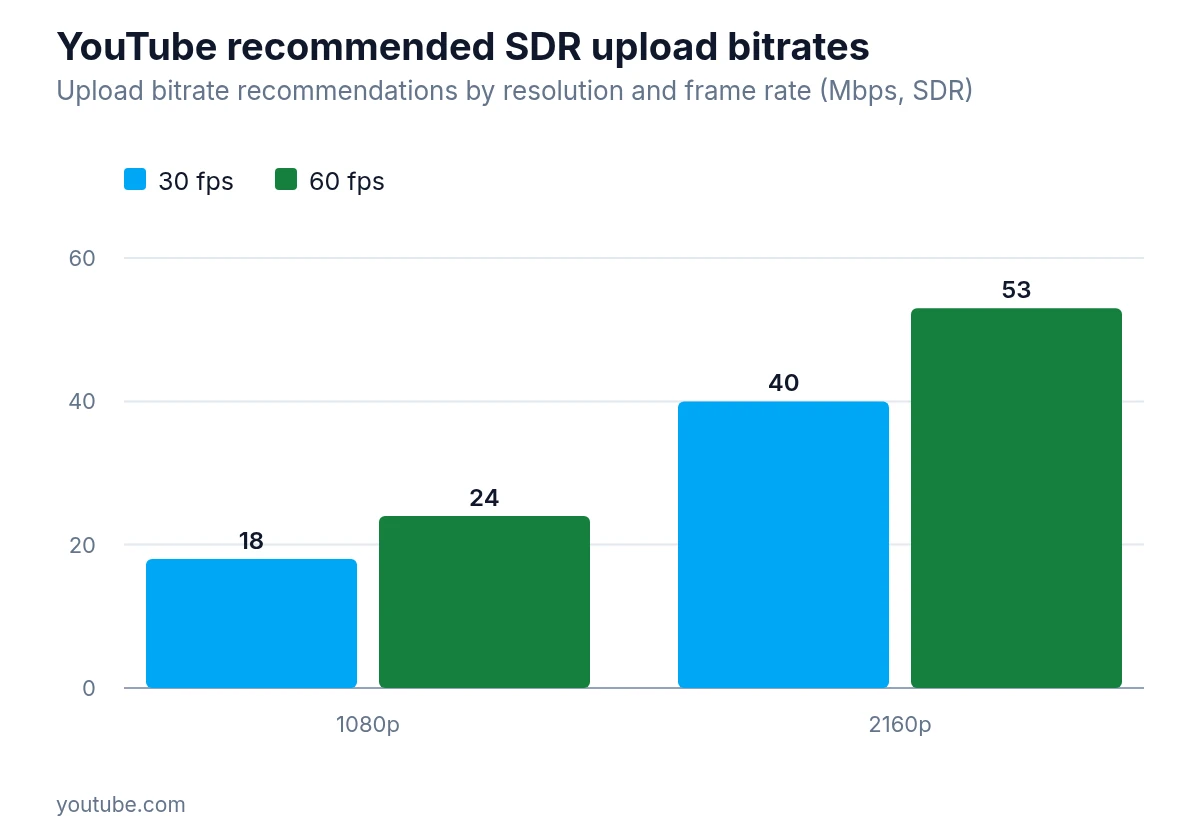
YouTube’s recommended SDR upload bitrates peak at about 53 Mbps for 4K (2160p) at 60 fps, with 4K at 30 fps around 40 Mbps and 1080p at 30 fps around 18 Mbps.
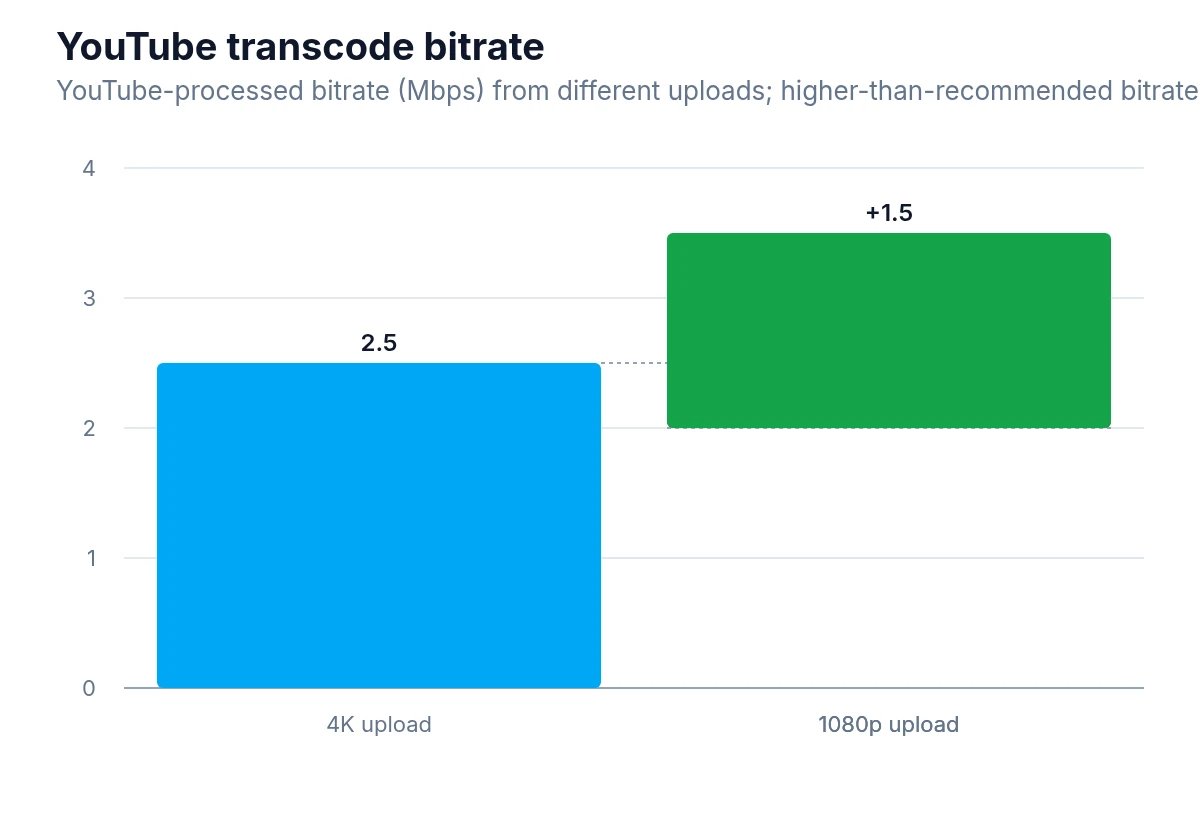
YouTube’s processed bitrate for a 4K upload is 2.5 Mbps, showing that uploading above recommended bitrates yields only a small extra bitrate after YouTube transcodes the file.
Use a variable bitrate (VBR) setting if your software offers it. VBR allocates more data to complex scenes (fast motion, lots of detail) and less to simple ones (a person talking against a plain background), which is more efficient than a fixed bitrate.
Audio
Export audio at 48kHz sample rate, AAC codec, 320kbps. This is YouTube's preferred audio format and avoids any transcoding artifacts. Research on audio codec differentiation found that listeners using consumer headphones could not reliably tell codecs apart at bit rates above 48 kb/s, so anything at or above that threshold is more than adequate for YouTube delivery.
Resolution
Export at the resolution you shot, or at the resolution you want to deliver. Do not upscale. A 1080p video upscaled to 4K does not get the quality benefits of native 4K footage and just creates a larger file.
Upload Practices That Affect Quality
A few things during the upload process itself can affect how your video looks.
Upload the highest-quality file you have. YouTube's processing improves when it has more information to work with. A larger source file is better than a smaller one, all else being equal.
Upload via a stable, wired internet connection if possible. Interrupted uploads can sometimes result in corrupted files that process incorrectly.
Give the video time to process before sharing it widely. As mentioned earlier, the higher-quality versions take time to become available. Publishing and immediately sending traffic to a video means some viewers will see the lower-quality version that was processed first.
Setting the video to "unlisted" while it processes, then switching to "public" once the 1080p or 4K version is available, is a practical workaround.
Consistency Across Your Channel
Individual video quality matters, but consistency across your channel matters almost as much. Viewers notice when production quality varies dramatically between videos. A channel where every video looks and sounds similar builds trust, even if the individual videos are not technically perfect.
Develop a simple checklist for your setup: camera position, lighting placement, microphone placement, white balance setting, color profile. Running through the same checklist before every shoot takes a few minutes and eliminates most of the variation that makes channels look inconsistent.
Where to Focus Your Attention First
If you are trying to improve your video quality and do not know where to start, prioritize in this order:
- Fix your lighting before buying any new gear
- Get an external microphone if you do not have one
- Learn your export settings and use a high bitrate
- Shoot in a higher resolution than you deliver if your camera allows it
- Develop a consistent setup and stick to it
The camera is usually the last thing that needs upgrading. Most quality problems trace back to lighting, audio, or export settings, all of which you can address without spending much money.
YouTube rewards consistency and clarity over technical perfection. A well-lit, clearly recorded video with solid export settings will outperform technically superior footage that was shot carelessly and exported poorly. Get the fundamentals right first, and the rest follows naturally.